Gift Card Rejected on PDCard? Match the Reason Before You Try Again
A rejected gift card does not always have an image problem. The next step depends on the message attached to the existing order: unclear evidence, wrong category, unreadable code, activation, balance or another review issue.
Open the original trade record, keep its reference and read the exact reason. Do not submit the same card repeatedly under different categories to test which one works.
Start with three checks
- Confirm which card the order concerns. Compare its brand, issuing country, currency, format and individual face value.
- Copy the exact rejection or review message, along with the order reference and date/time.
- Follow the specific next step shown in the app. If you cannot match the reason, ask official support about that order before creating another.
These checks help distinguish a card problem from a photo problem or an app issue. Read app error or gift card error if the screen itself is not working as expected.
If the image is unclear or the attachment is wrong
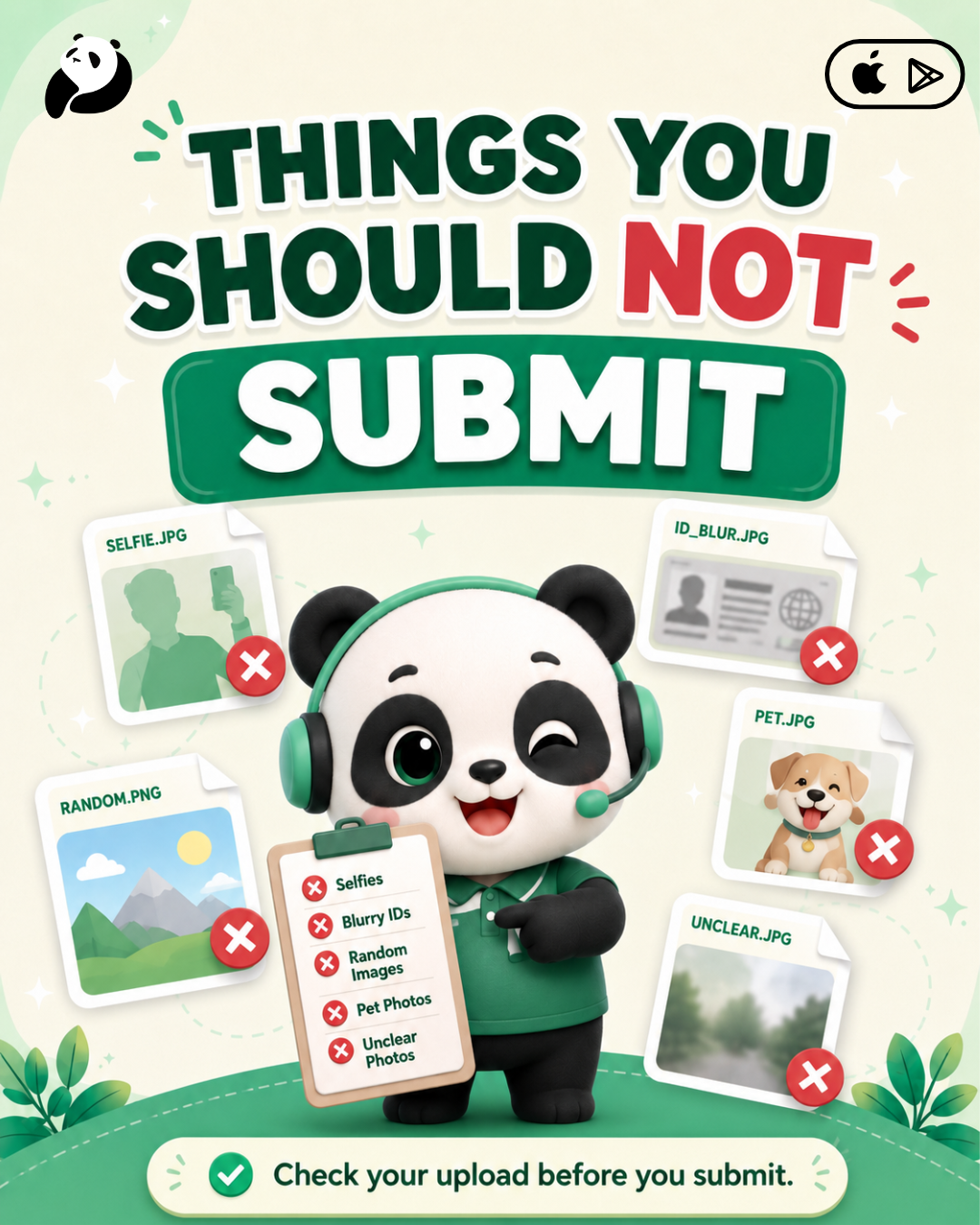
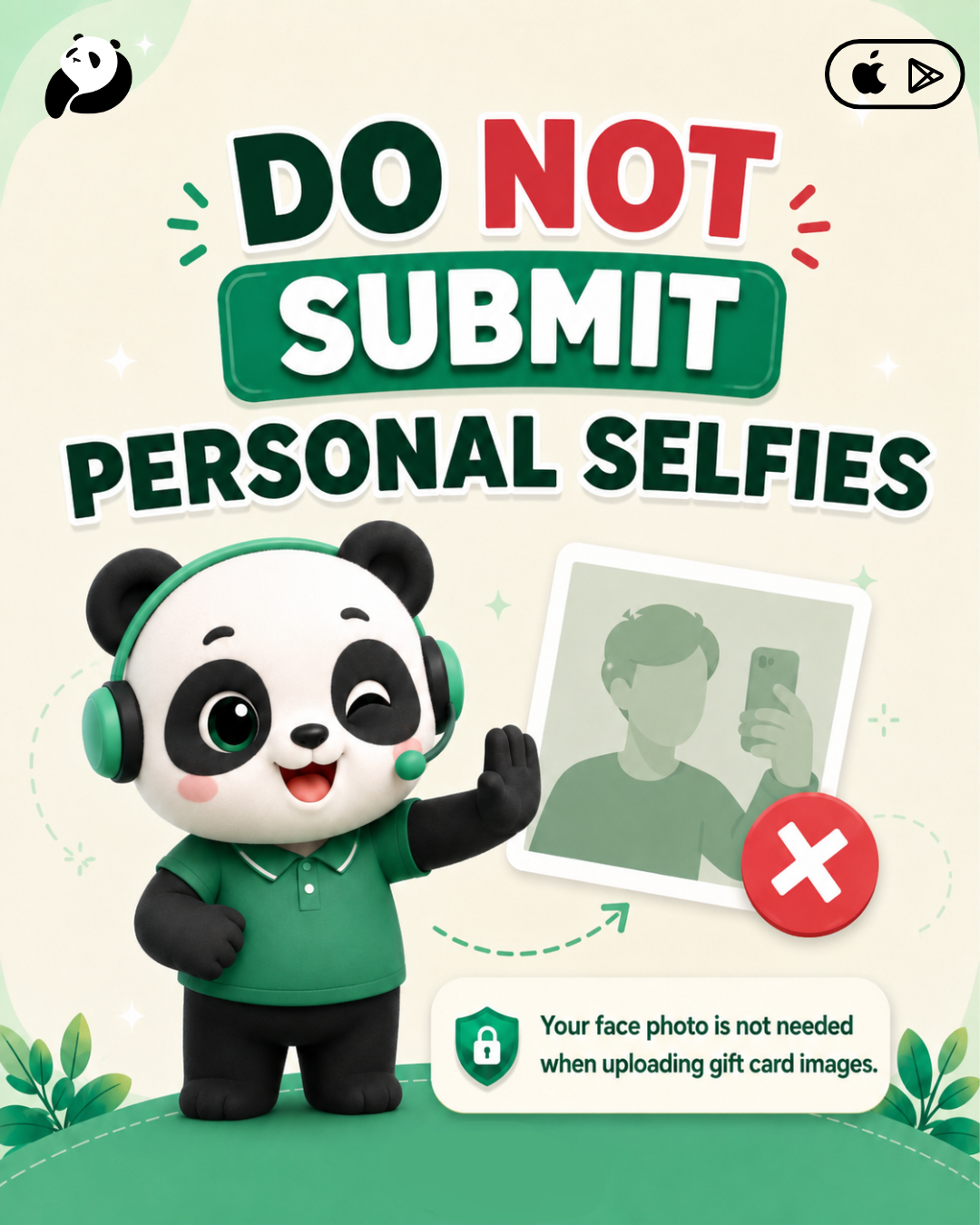
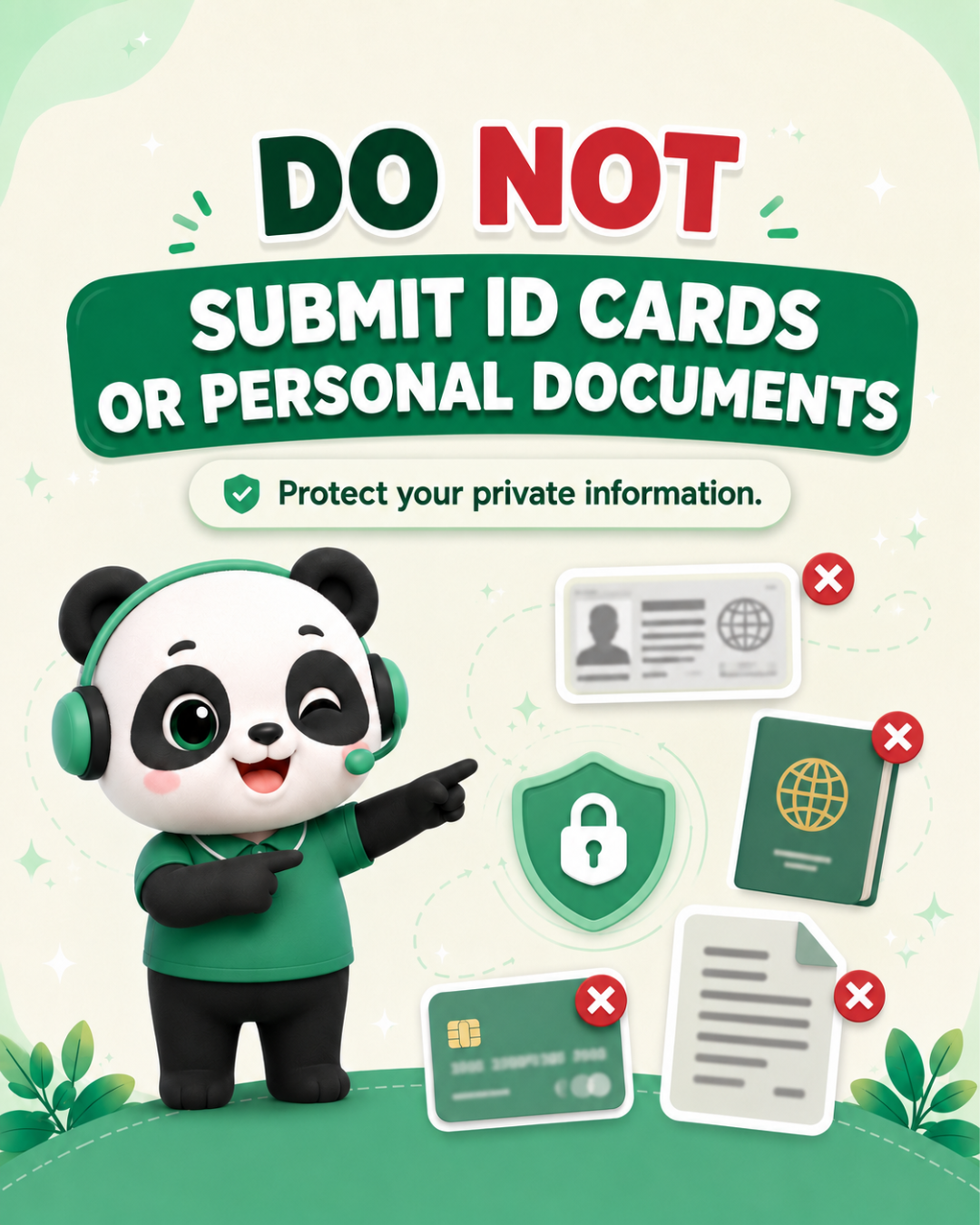
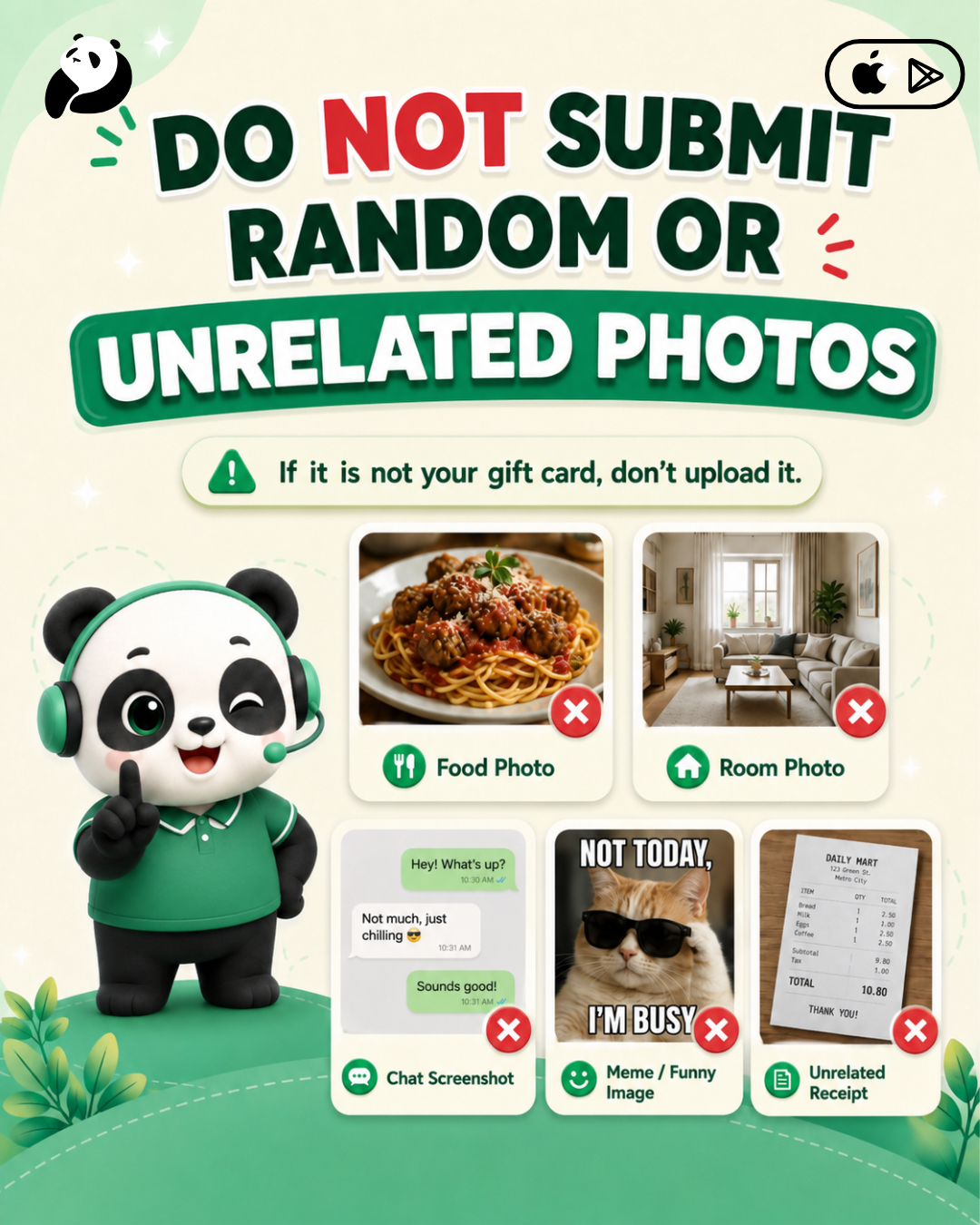
Review the actual file attached to the order. It should contain the requested card evidence, not a selfie, unrelated document, random gallery photo or another purchase's receipt.
Take a clear photo in good light without cutting off required details. Provide the requested front/back views or digital-card evidence through the official app. Do not edit characters, invent missing information or cover details that the selected category requires for verification.
If the existing order can be corrected, use the correction route shown there. Otherwise, ask support whether and how a corrected submission should be made. A clearer photo cannot repair an already-used card or prove that an unsupported category is eligible.
If the category or country does not match
Compare the card with the selected brand, issuing market, physical/digital format and face value. A different country or category can have different requirements and a different estimate.
Do not choose a higher-paying category because its number looks better. Do not describe several smaller cards as one larger card. Read the wrong-category guide, country-selection guide and individual-denomination guide.
If activation, code or balance is the issue
Not activated: preserve the purchase evidence and contact the original retailer or issuer about activation. Resubmitting the same unactivated card does not itself activate it. See the Apple activation guide.
Unreadable or damaged code: keep the physical card and legitimate purchase evidence. Do not guess or alter a damaged character. Follow the relevant issuer's recovery process and read the unreadable Apple code guide.
Already redeemed, used or balance disputed: keep the exact message and any official evidence. Do not redeem the card again or send it to multiple vendors while trying to establish what happened. A receipt or printed face value alone does not establish the current unused balance. Read valid Apple card but zero balance and what happens when a card has already been partly used.
If you believe the result is wrong, ask support to review the existing order and relevant evidence. A dispute should be investigated; this guide does not assume that either party's claim is already proven.
If more information or a receipt is requested
Provide the evidence requested for that card's actual category through the official process. A bank debit alert, another card's receipt and an order confirmation are not automatically interchangeable.
If you do not have a requested document, explain what is missing rather than uploading an unrelated substitute. For a specific Google Play message, read “needs more information”. For Amazon, see the receipt guide. If your proof is missing, use the no-receipt checklist before trying again.
Ask for help without exposing your card
Use official PDCard support and provide the original reference, exact message and non-sensitive card profile. Explain what happened before the error and whether you have already supplied the requested evidence.
Keep full redemption codes, PINs, complete card images, passwords and login codes out of public comments. Do not create a new account or repeated submissions to get around a review result.
Once the issue is resolved and support confirms the appropriate route, check the current estimate and the matching in-app quote before any new submission. A rate shown for a category is an estimate, not a guarantee that an individual card will pass verification. If you need the correct app, follow the official download guide.
Image examples for checking your upload
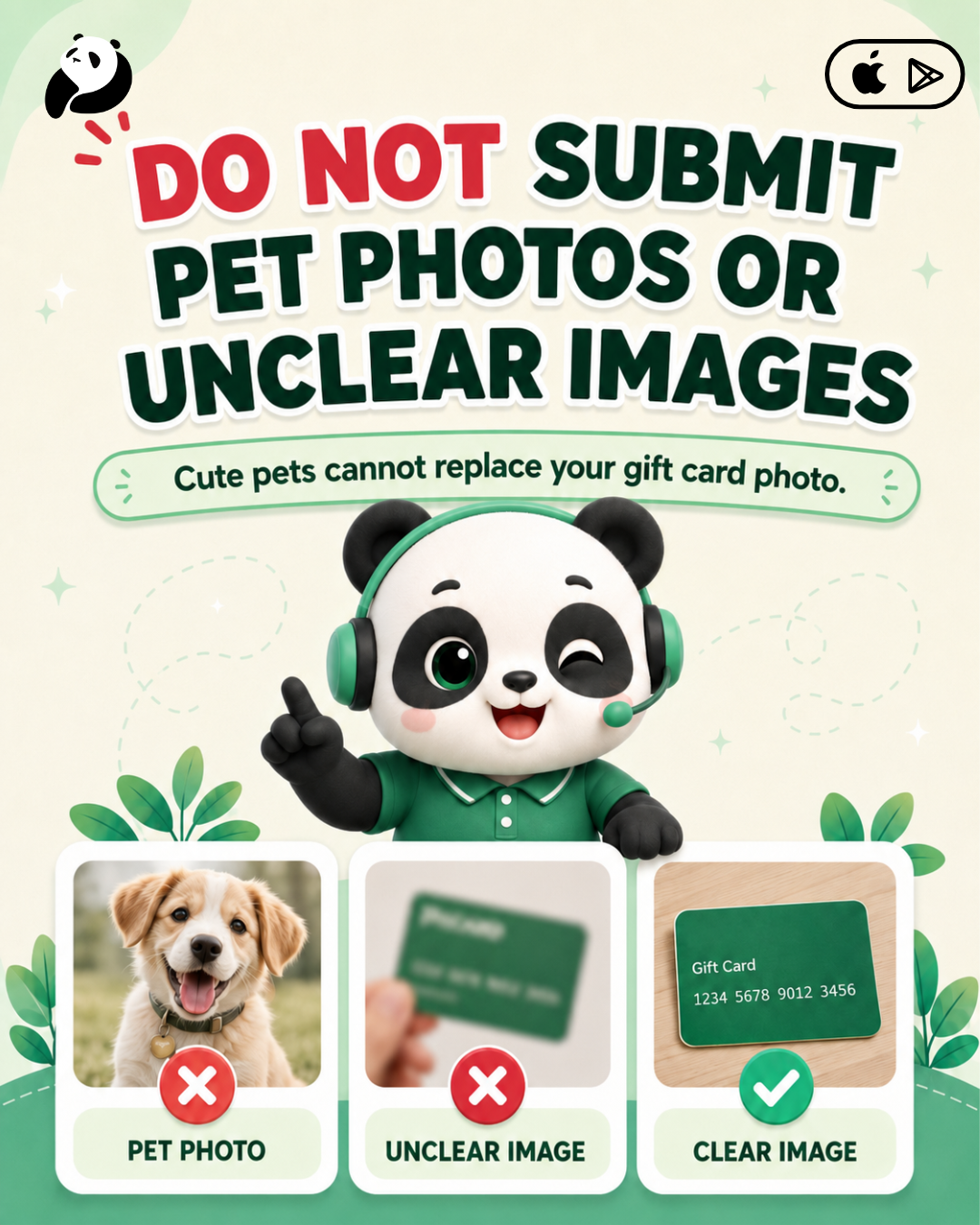
Related PDCard creator walkthrough
Stanley Savvy PDCard creator video
Watch the original Stanley Savvy PDCard post. Produced in collaboration with PDCard. Follow the current app instructions for your own card and category.