Google Play Gift Card Needs More Information: What Should You Do?[2026]
A request for more information does not automatically mean that your card is invalid, rejected, or unusable. It usually means that additional card or purchase details need to be checked.
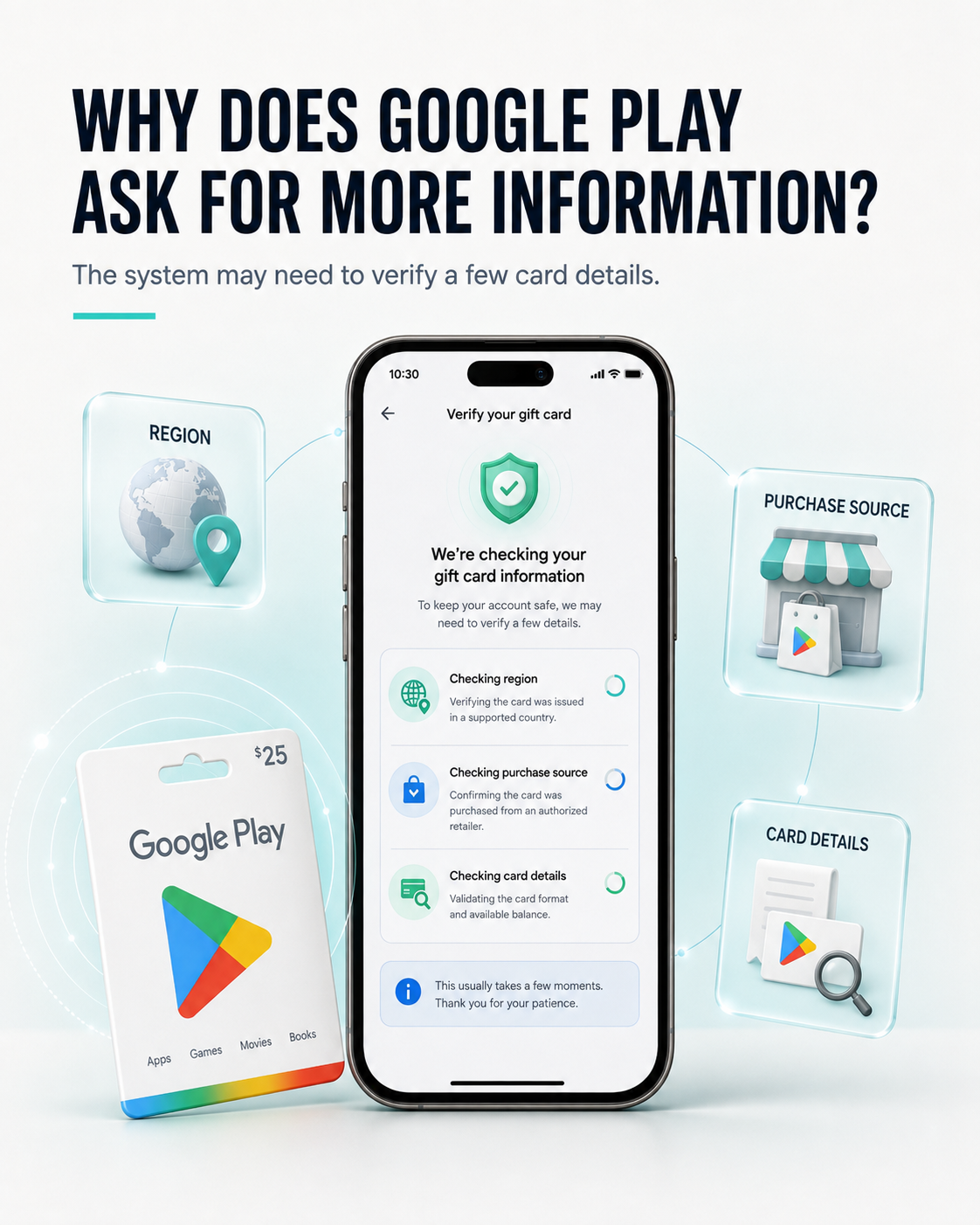
The system may need to confirm the card’s region, purchase source, card details, or account information before completing the request.
Keep the original card, purchase receipt, order confirmation, seller details, purchase date, and correct region information available.
Why Does Google Play Ask for More Information?
Google Play Gift Cards are generally issued for specific markets. When a card is redeemed, the system may check whether its region, purchase source, card details, and account information are consistent.
Additional verification may be needed because of:
- The card’s country or region
- The purchase location
- The source of the gift card
- The card format or denomination
- Missing or unclear purchase information
- Details that do not match the Google Play account
- Standard security and fraud-prevention checks
The message means that more information is required. It does not confirm that the card has permanently failed.
The final result depends on the information provided and the relevant verification process. Complete information can make the process easier to follow, but it does not guarantee approval.
Check the Gift Card Country or Region
Google Play Gift Cards are generally region-specific. A card purchased for one country may not work with an account or payment profile connected to another country.
Check:
- The country where the card was purchased
- The currency printed on the card
- The country shown on the receipt
- The region connected to the Google Play account
- Regional information in the purchase email
Do not identify the country based only on the language printed on the card. Use the packaging, receipt, purchase email, currency, and seller information together.
Confirm the Purchase Source
Prepare the name of the store, website, or seller shown on the original purchase record. The information should match the receipt or digital order confirmation connected to that specific card.
Useful details:
- Store or website name
- Purchase date
- Order or transaction number
- Gift card value
- Payment method
- Country or region of purchase
Avoid submitting a receipt from a different order. The card, receipt, purchase date, value, and seller information should correspond with one another.
Prepare the Right Information
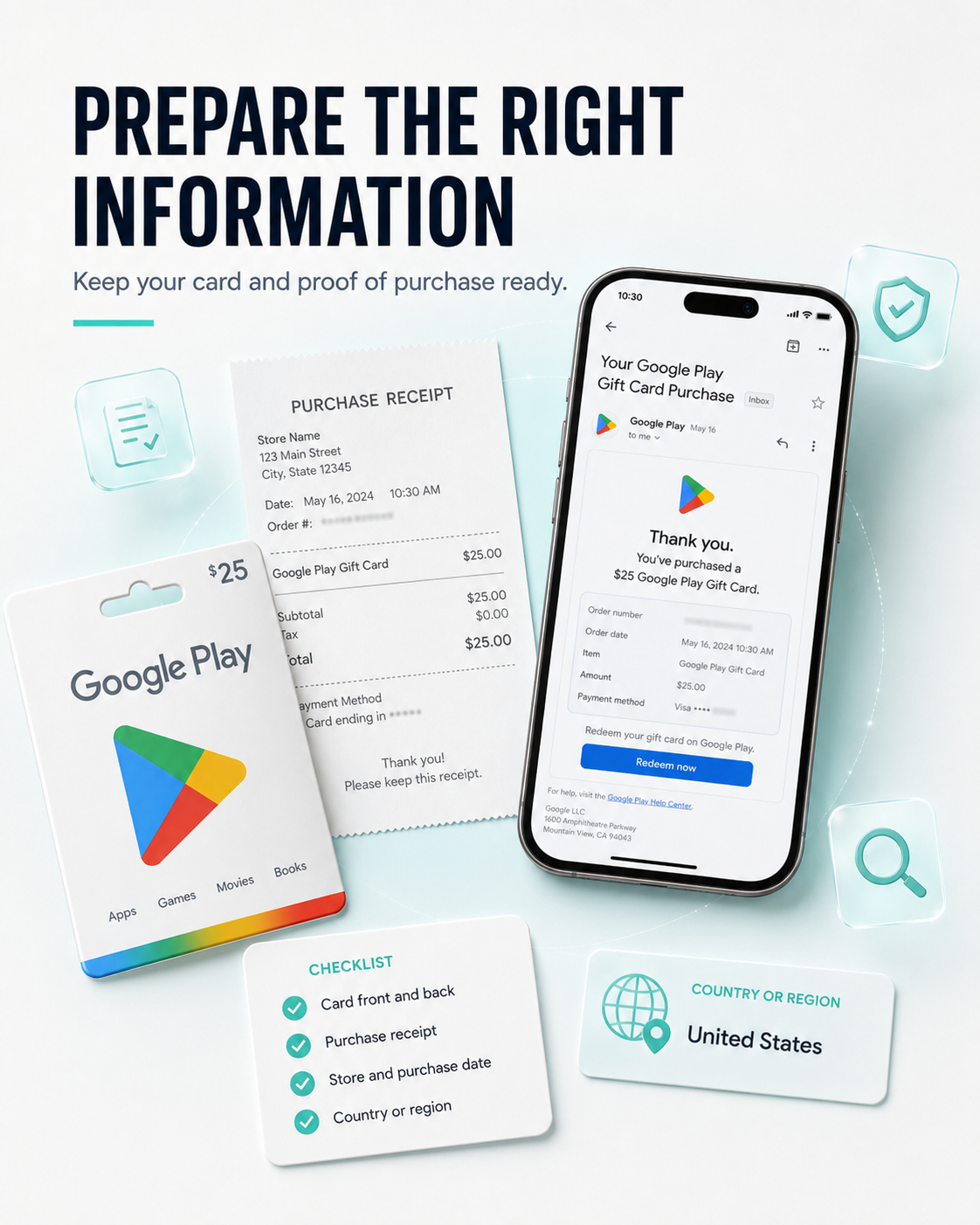
Before contacting official support, collect the relevant card and purchase information. Keep the original gift card and proof of purchase available until the issue has been fully resolved.
Prepare clear front and back images, the original receipt, store name, purchase date, country or region, and relevant packaging.
Prepare the original purchase email, order confirmation, transaction number, purchase date, card value, seller name, and purchase region.
Keep the original card, receipt, purchase email, and order confirmation until the verification or trading issue has been completed.
Take Clear Card and Receipt Images
For a clear physical-card photo:
- Use bright, even lighting
- Keep the complete card inside the frame
- Avoid glare, blur, and strong reflections
- Make all important text readable
- Photograph the front and back when requested
Make sure the store name, purchase date, order details, and gift card value are readable when those details are requested.
Only share sensitive card information through the relevant official support process. Do not send the complete code to unknown individuals.
Avoid These Common Mistakes
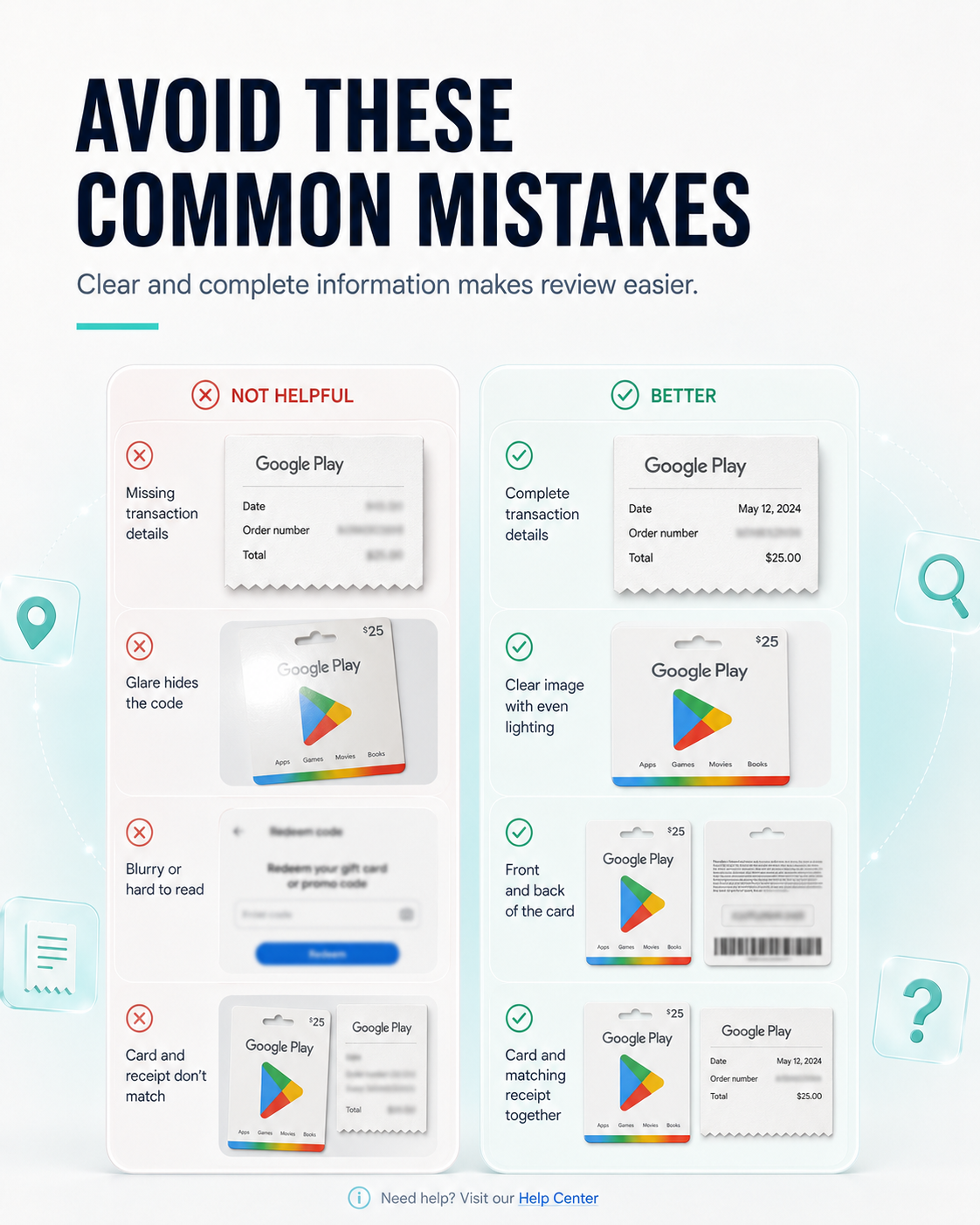
Clear and complete information makes the verification process easier to follow. Incomplete or mismatched details may lead to additional questions.
- Missing transaction details
- Glare hiding the card information
- Blurry or unreadable images
- Card and receipt from different purchases
- Complete order and transaction information
- A clear image with even lighting
- Readable front and back images
- A matching card and receipt submitted together
Other common mistakes include selecting the wrong country, entering the wrong denomination, providing an incomplete digital order confirmation, or discarding the card before the issue is resolved.
Check the Gift Card Category Before Submitting
When submitting a Google Play Gift Card through a trading platform, the selected category must match the actual card.
Confirm the brand, country, currency, denomination, and physical or digital format. Choosing a similar but incorrect category may result in the wrong available rate or additional review.
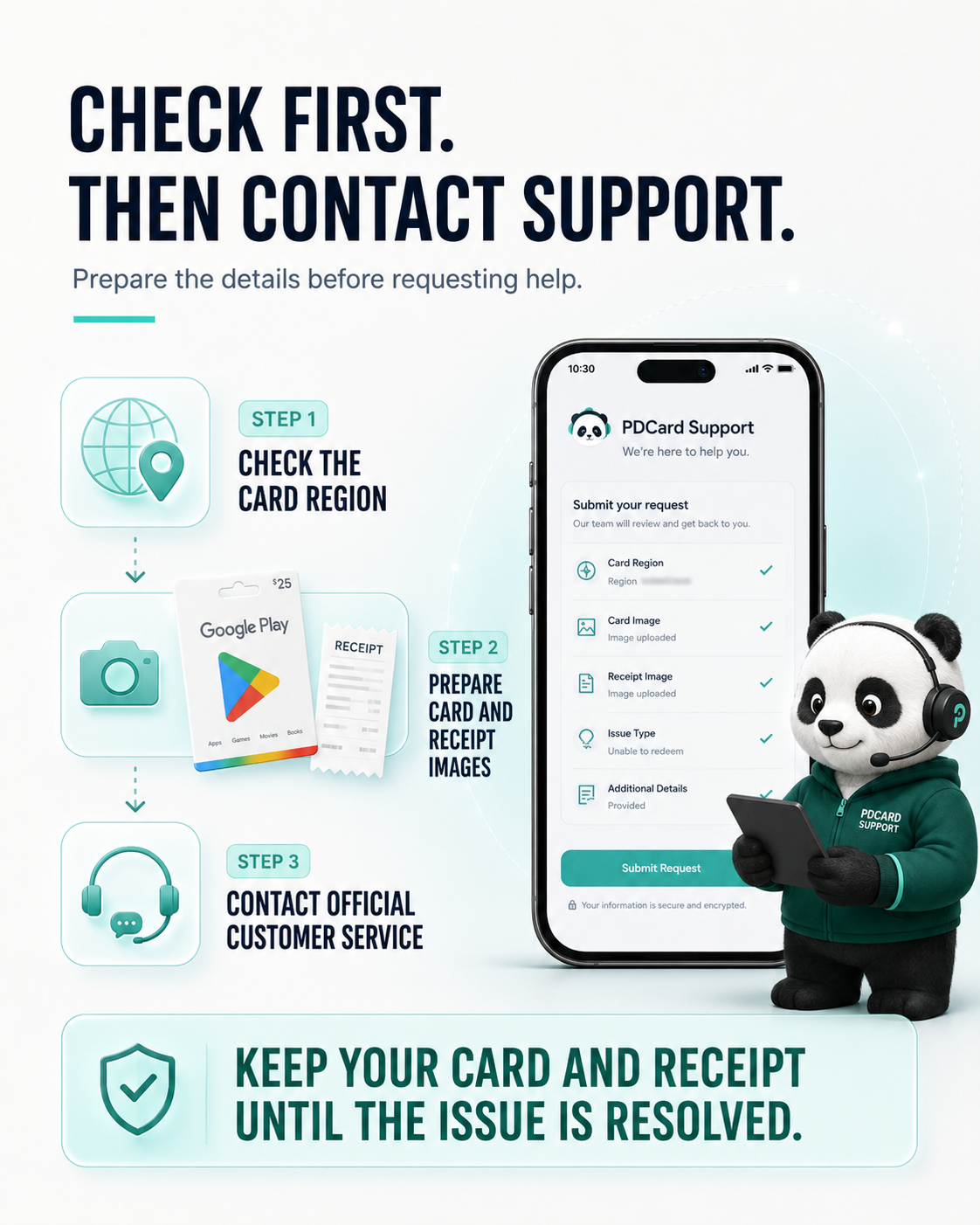
Check First, Then Contact Official Support
- Check the card region. Confirm that the country, currency, purchase location, and account information are consistent.
- Prepare the card and receipt. Collect clear images, the receipt or purchase email, order number, date, value, and seller information.
- Contact the correct support channel. Use official Google Play support for redemption issues or official PDCard support for a submitted PDCard trade.
Should You Submit the Card Again?
Avoid repeatedly submitting or redeeming the same card while a verification request or existing trade is already under review.
- Keep the original card and receipt.
- Save the order ID, reference number, or request number.
- Check whether additional information has been requested.
- Respond through the official support process.
- Wait for the verification or review result.
Repeated attempts do not guarantee a faster result and may make the issue more difficult to track.
Not necessarily.
The message may indicate that the system needs to verify the card’s region, purchase source, card details, or proof of purchase.
Do not assume that the card is invalid simply because additional details are requested. At the same time, providing more information does not guarantee approval.
Follow the official instructions.
Provide accurate information, keep the original proof of purchase, and use the correct official support process for either a Google Play redemption issue or a PDCard trade.
What to Check Before Trading a Google Play Gift Card
Keep Your Card and Receipt
Do not discard the gift card, packaging, purchase receipt, or digital confirmation immediately after submitting a request.
These materials may be needed to confirm the card’s origin, issuing region, seller, purchase date, value, or related transaction.
Check the details first, prepare complete information, and contact the correct official support channel when assistance is required.
Check Rates, Submit Cards, and Stay Updated
Use the PDCard app to check available gift card rates, select the correct card category, submit gift card information, and follow transaction status.
Use official PDCard links only. Never publish or share your complete gift card code in a public group.
Apple gift card trading on PDCard
The Google Play error discussed here is specific to that card and should not be used to diagnose an Apple card. If you want to sell Apple gift cards instead, follow the Apple submission requirements and ask support about any Apple-specific error before sending the code.
Related guides: how to sell Apple gift cards in Nigeria and Apple gift card rates and naira value.