App Error or Gift Card Error? Know the Difference Before You Try Again
The point where the process fails tells you what to check next.
When something goes wrong while trading a gift card, it is easy to assume the card itself is the problem.
But that is not always true.
Sometimes the issue comes from the app flow. Other times, the app works normally and the problem is related to the gift card itself.
Knowing the difference can save you from submitting the same card repeatedly, changing the wrong information, or contacting support without the details needed to check the problem.
App Error vs Gift Card Error: What Is the Difference?
Think of the trading process as two separate stages.
Can PDCard Receive the Submission?
What Does the Review Say About the Card?
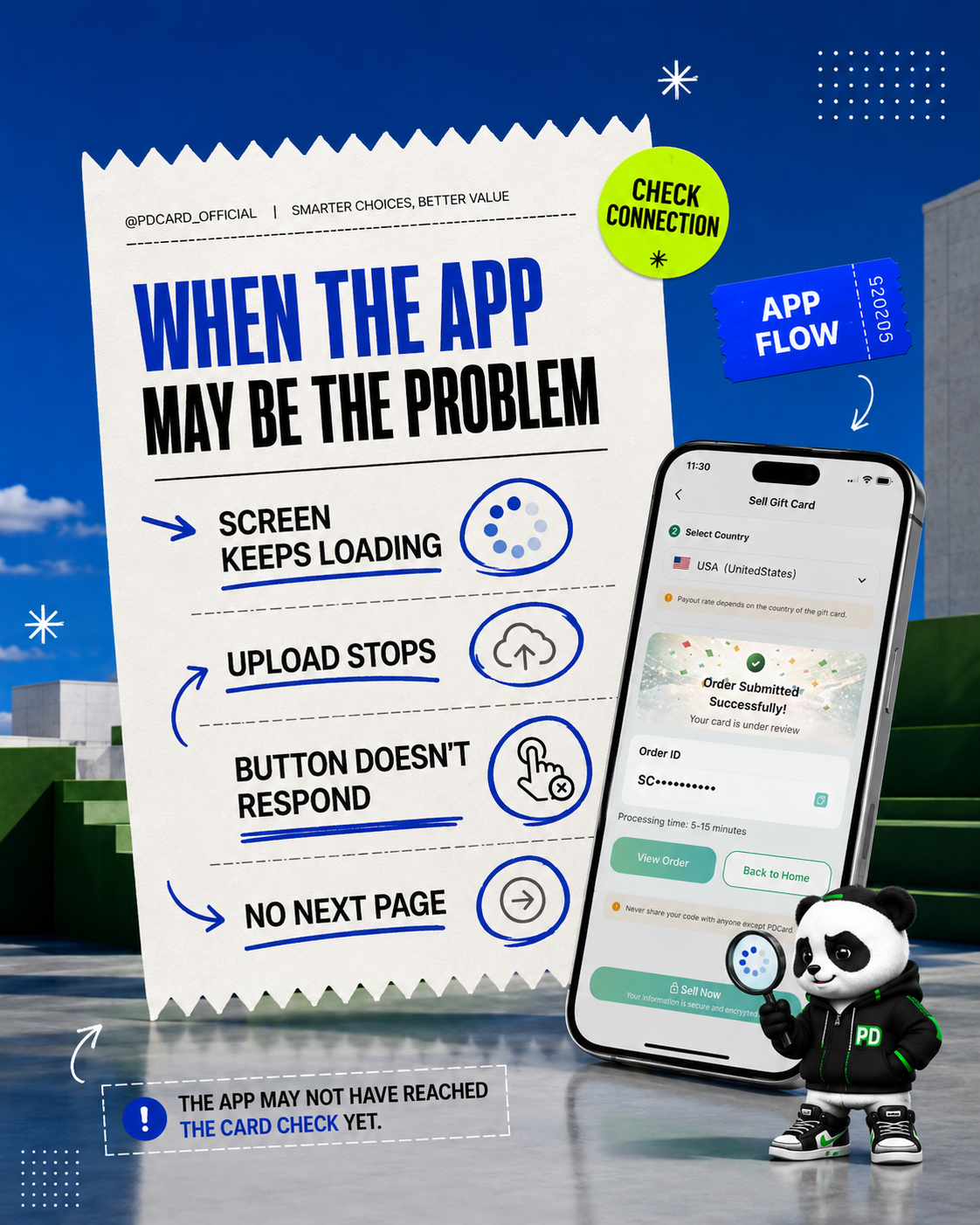
Signs the Problem May Be With the App
Some problems happen before the gift card itself has been fully reviewed.
If the page remains on a loading screen for an unusually long time, the transaction flow may not have completed. Check whether an order was actually created.
The card itself has not necessarily been reviewed yet. Check your connection, app permissions, and whether the upload completed.
Repeatedly pressing the same button is usually not the best first response. Check whether the screen is still processing.
Check whether an order already exists before trying again. This helps avoid unnecessary repeated submissions.
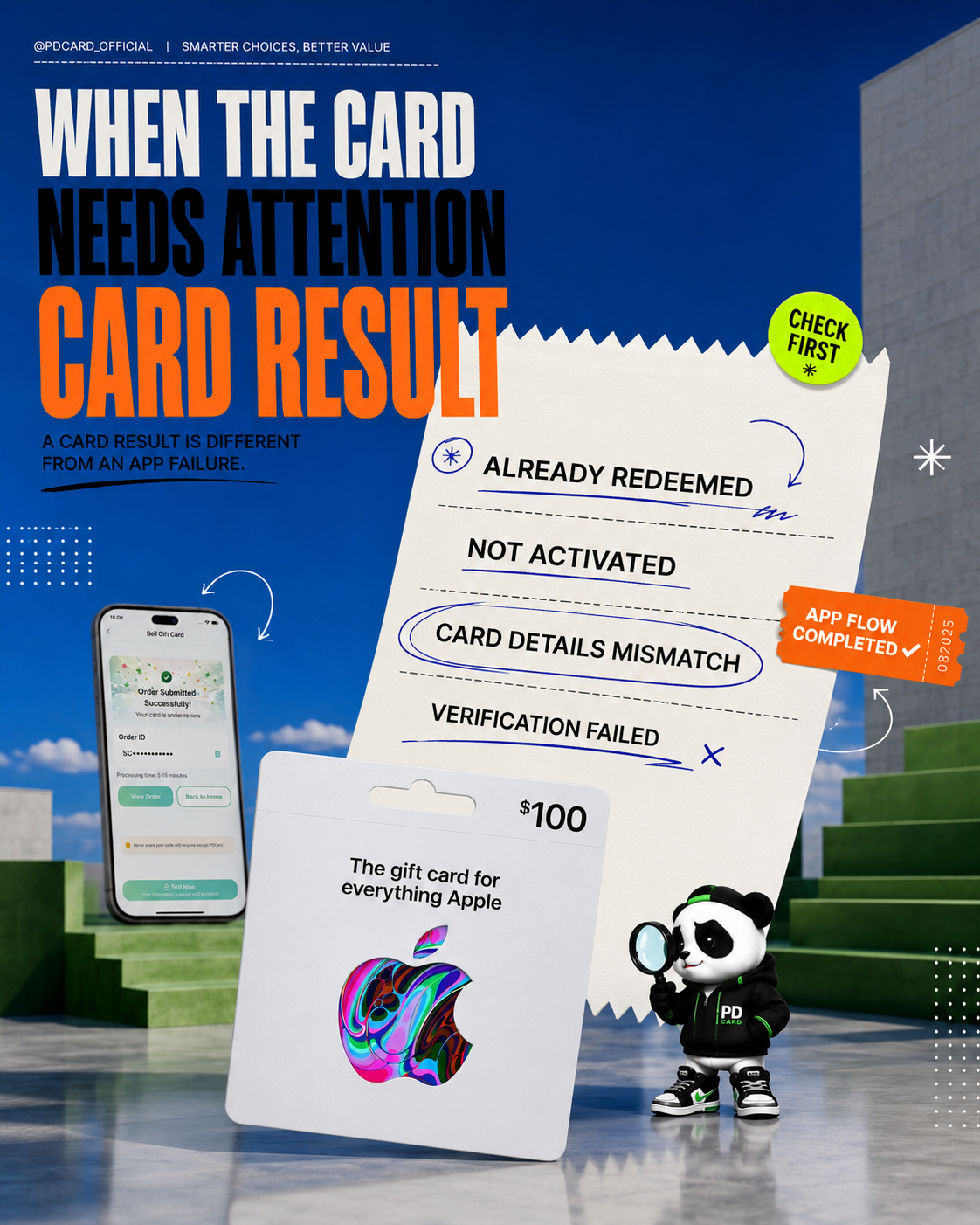
Signs the Gift Card May Need Attention
A gift card issue usually looks different. Instead of the app simply freezing or failing to proceed, you may receive a specific result related to the card.
In this situation, the app flow may have worked correctly—the review simply found something that needs attention.
A Specific Card Result Is Different From an App Failure
No order. No card-specific result.
The problem points more toward the app or submission flow.
The app records the transaction.
The problem points more toward the card or card information.
Use Your Order Status as a Clue
If you see Order Submitted Successfully together with an Order ID, that tells you the submission reached an important stage.
Your card is now under review, and you can use View Order to follow what happens next.
If no order appears at all, the issue may have occurred earlier in the app flow.
How to Track Each Step of a Gift Card Trade on PDCard →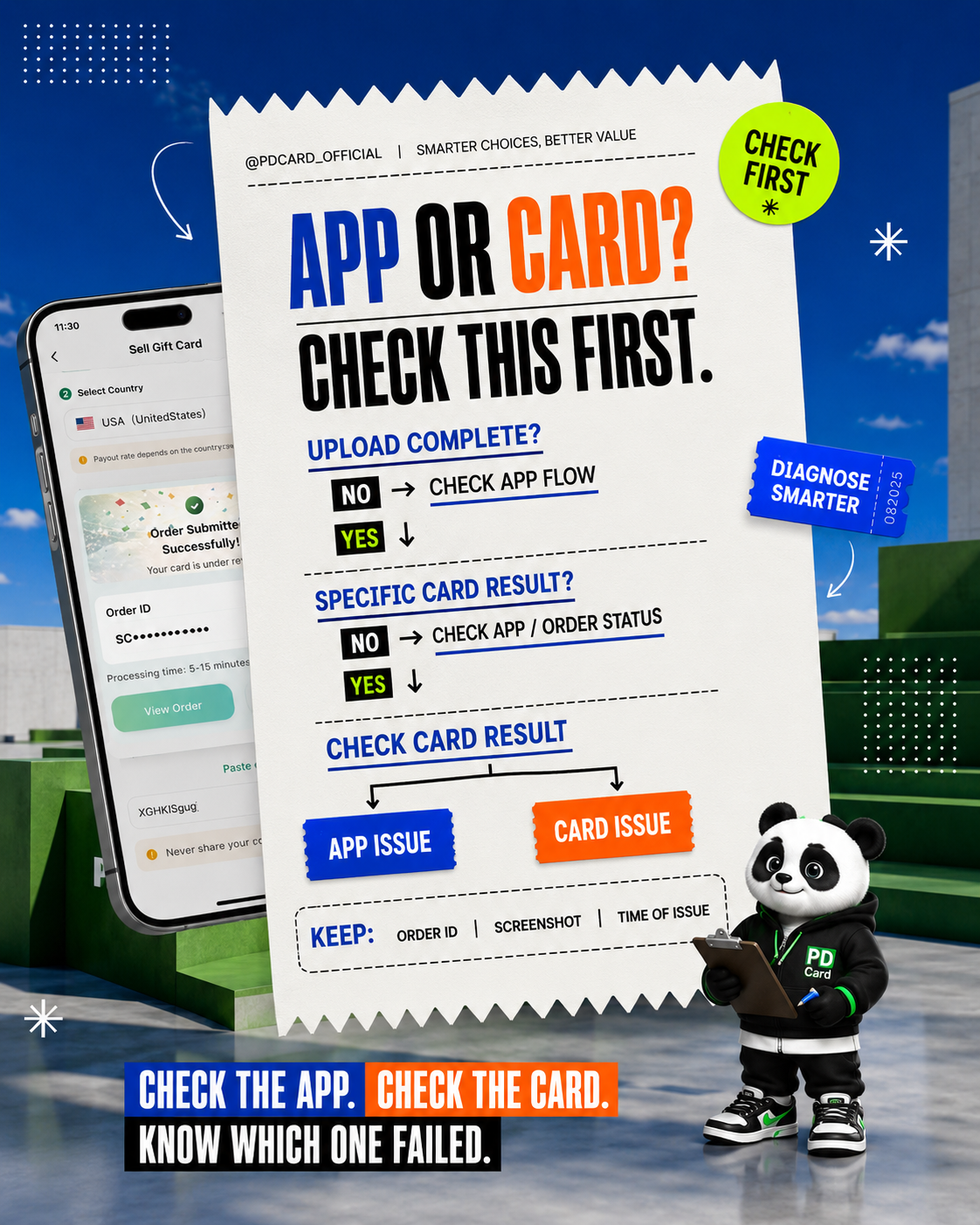
A Fast Way to Diagnose the Problem
Move through these checkpoints before you retry.
Did the upload complete?
No: Check internet connection, image upload, camera or photo permissions, and app response.
Yes: Move to the next question.
Was an order created?
If you received an Order ID, the app successfully recorded the submission. If not, check the app flow before assuming the card was rejected.
Did you receive a specific card-related result?
No: The issue may still be related to the app, processing, or order flow.
Yes: Read the card result carefully before submitting again.
Do Not Keep Resubmitting the Same Card Immediately
When users are unsure what happened, a common reaction is to try again immediately. That can make the situation more confusing.
- Check whether the first order exists.
- Check your transaction history.
- Open the Order Details page if available.
- Read the latest status.
- Confirm whether the issue is actually app-related or card-related.
If the original transaction is already being processed, creating another one may not help.
What Can You Do When Your Transaction Isn’t Available in the PDCard App? →What Should You Check Before Contacting Support?
If the problem still is not clear, prepare the information that helps support identify where the failure happened.
Better than: “My card is not working.”
“I uploaded the card, but the page stopped after submission and I did not receive an Order ID.”
Or: “The order was created successfully, but the card review returned a specific verification result.”
How to Contact PDCard Online Support →
When Should You Try Again?
Trying again makes sense after you have checked what happened to the previous attempt.
- Confirm your connection
- Reopen the app
- Check required permissions
- Confirm you are using the latest available version
- Verify that no previous order was already created
Repeatedly submitting the same information usually will not solve the underlying issue.
Review the result and make sure the card information you selected matches the card you actually have.
Is Your Gift Card Ready to Trade? →
Check the App. Check the Card. Know Which One Failed.
First ask: Did the app fail before the card was checked?
Or: Did the app successfully process the submission and return a card-specific result?
That difference tells you what to check next.
Continue From Here
Open the app to check your order, or jump straight to the official PDCard community.
Get PDCard on Your Phone
Use official PDCard links only. Check your existing order before creating another submission.
Apple gift card trading on PDCard
If you encounter an error while trying to sell Apple gift cards, first check whether it affects the app or the particular card. Keep the error details and order reference so support can advise on the correct next step.
Related guides: how to sell Apple gift cards in Nigeria and Apple gift card rates and naira value.