Why You Should Check Your Transaction Records Before Contacting Support[2026]
Your transaction record may already show the current status, Order ID, submission time, selected category, estimated processing information, and the latest request connected to your trade.
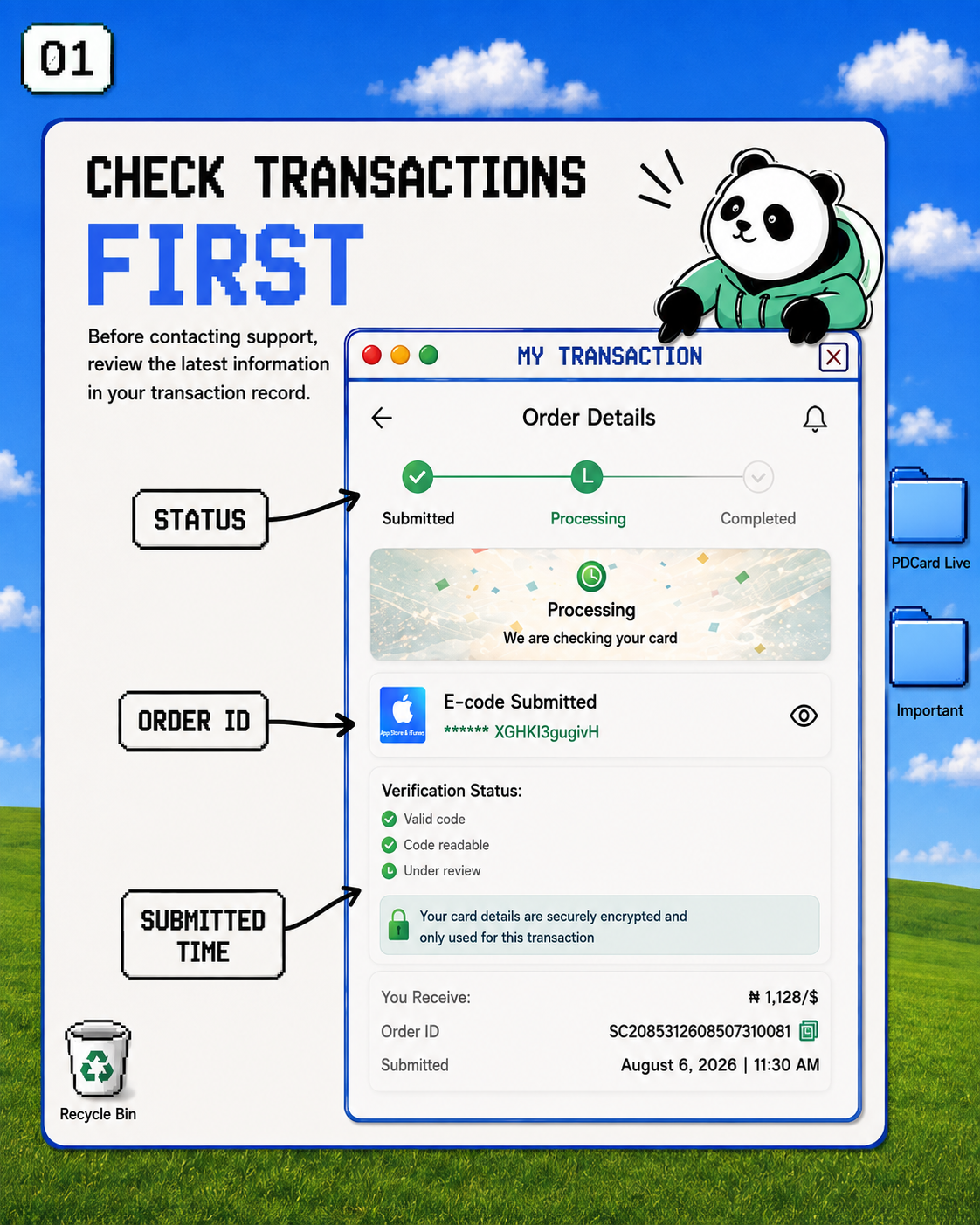
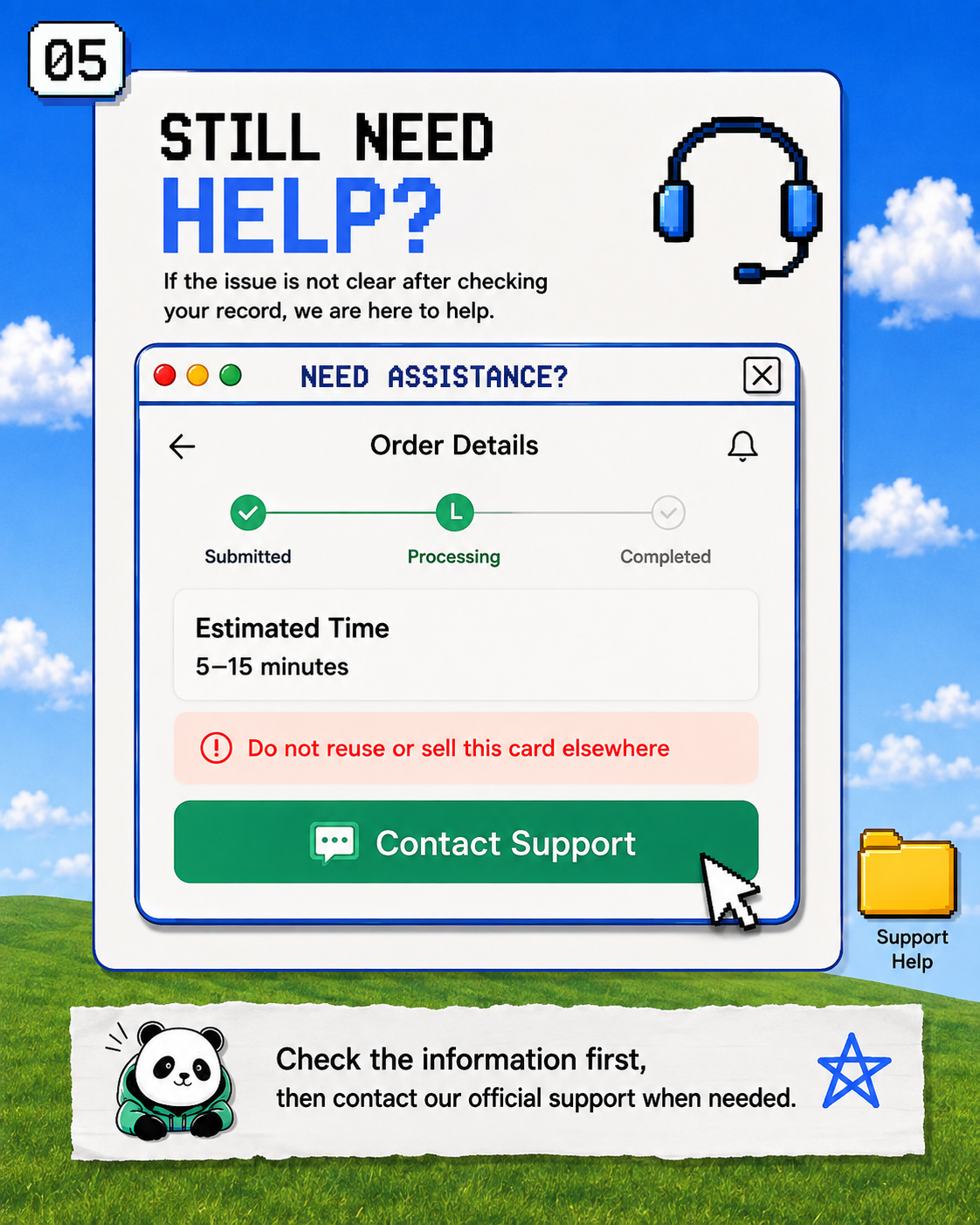
Reviewing the transaction record helps you understand whether the order is still progressing normally or whether further action may be needed.
Checking first does not replace customer support. It helps you provide the correct Order ID, status, and transaction details when assistance is still needed.
Start with the Transaction Status
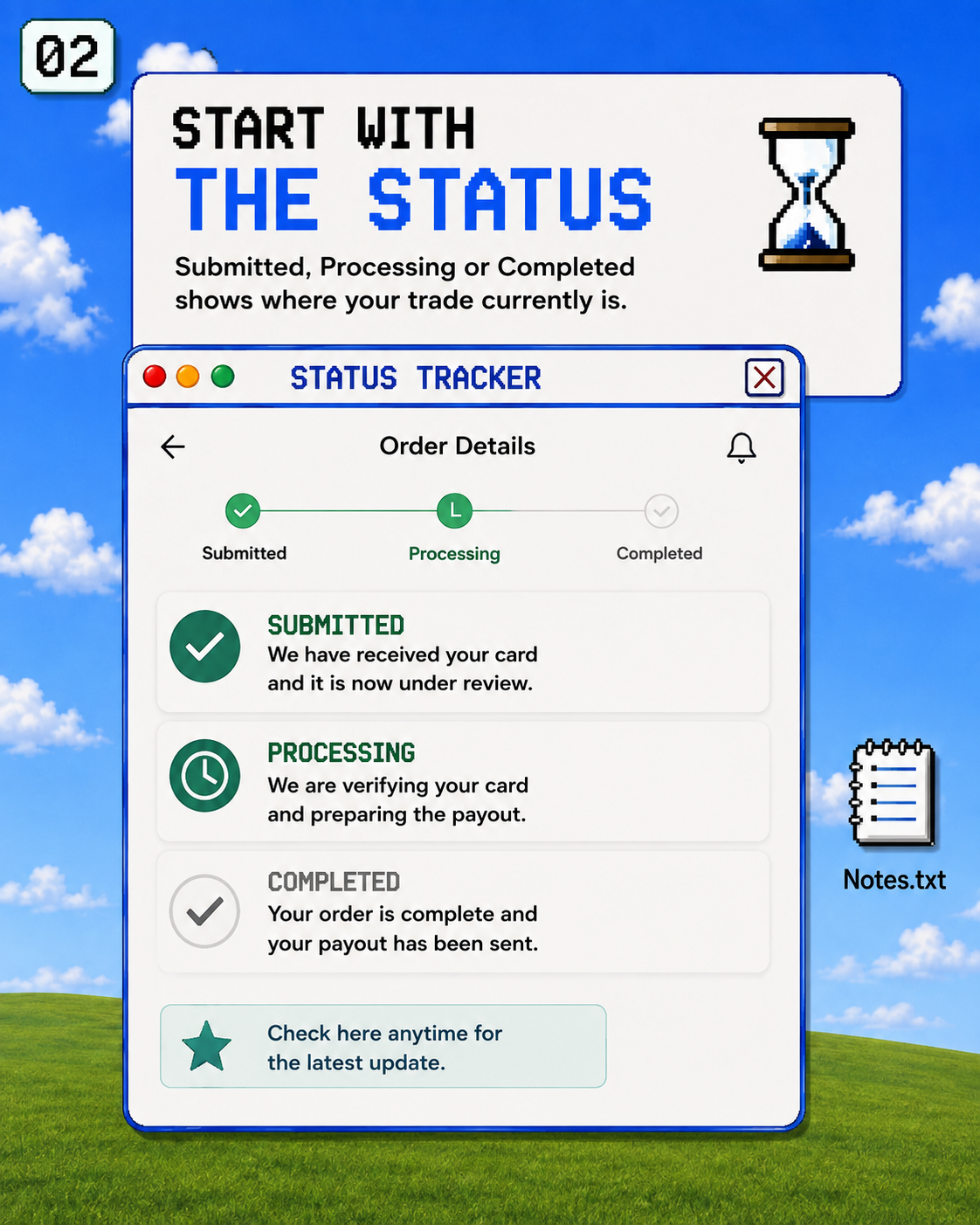
The first detail to review is the current status of the trade. This shows where the transaction currently is in the review process.
Submitted
PDCard has received the gift card submission, and the order is waiting for or entering review.
Processing
The card is still being checked or the transaction is being prepared for the next stage.
Completed
The transaction has reached its completed stage. Review the final order and payout information shown in the app.
A Processing status does not automatically mean something is wrong. The card may still be undergoing standard review or verification.
Review the Important Details
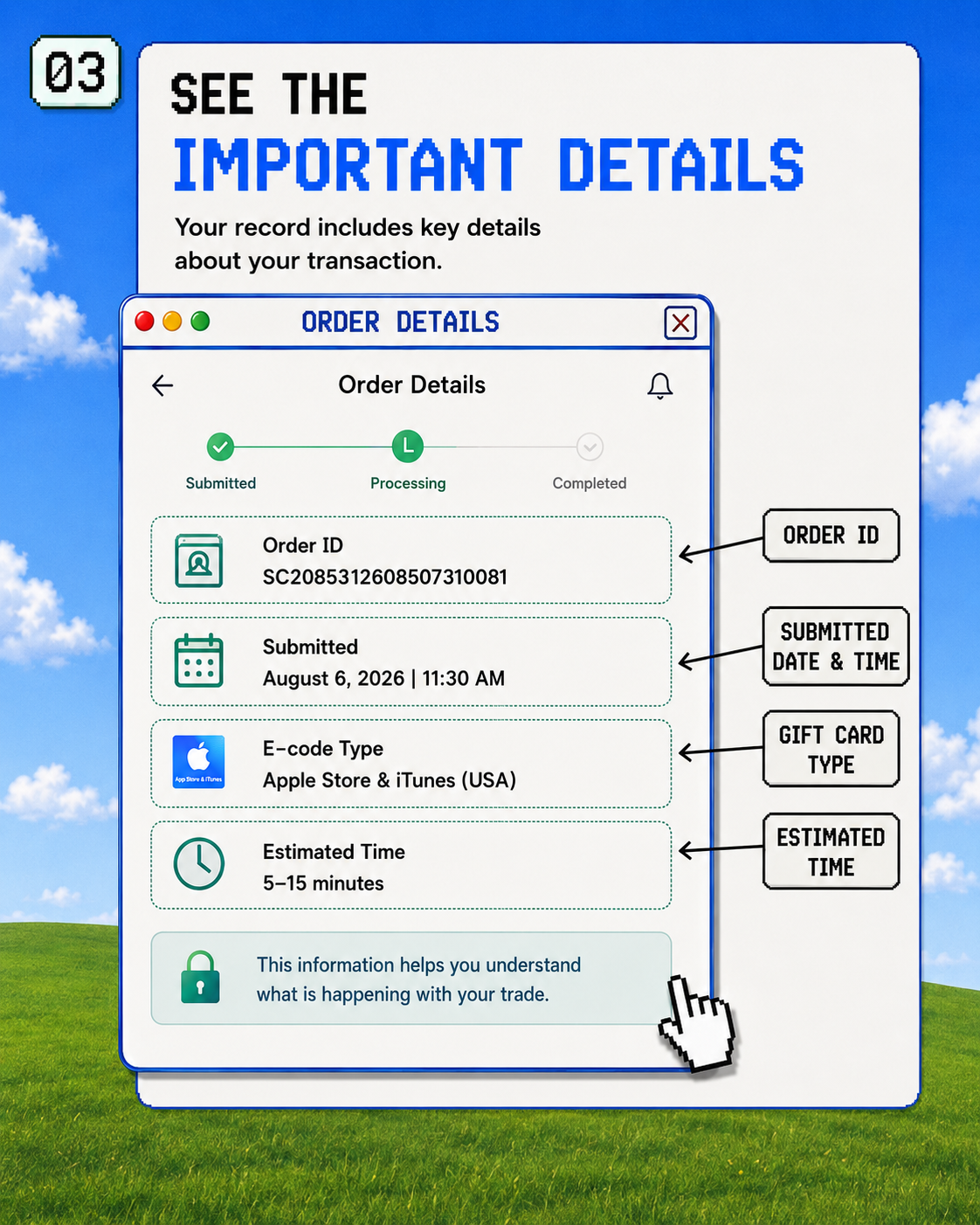
The status is only one part of the transaction record. Open the order and review the information connected to the trade.
- Current transaction status
- Order ID
- Submission date and time
- Gift card brand and card type
- Country or region and denomination
- Estimated processing time
- Requests for additional information
- Completion or payout details
Why the Order ID Matters
The Order ID is the main reference connected to a specific transaction. Keep it available whenever you need help with an existing trade.
When contacting support, include the Order ID so the support team can identify the correct transaction without unnecessary extra questions.
My transaction is still showing Processing. My Order ID is [Order ID], and it was submitted on [date] at [time]. The estimated time shown in the app has passed. Could you please check the current status?
Check the Submission Date and Estimated Time
The submission date and time help you understand how long the transaction has been in its current stage.
Before contacting support, compare:
- When the trade was submitted
- The current transaction status
- Any estimated processing time shown in the order
- Whether the status recently changed
- Whether additional details have been requested
An estimated processing time is a guide rather than a guarantee. Review time may vary depending on card information, image quality, selected category, region, verification requirements, and current processing conditions.
Confirm the Gift Card Details
Check that the information shown in the transaction matches the gift card you intended to submit.
Confirm the gift card brand, country, region, and currency.
Confirm the denomination and whether the order uses a physical card or an e-code.
Check the uploaded image or submitted code details connected to the order.
Do not submit the same gift card again simply because you notice a possible mistake. Check the existing order first and contact official support when guidance is required.
Look for Requests for More Information
Some transactions may require additional information before the review can continue.
A request for more details does not automatically mean that the gift card has been rejected. It may mean that the original submission does not contain enough information to complete the review.
Provide the requested information through the official process connected to the existing order.
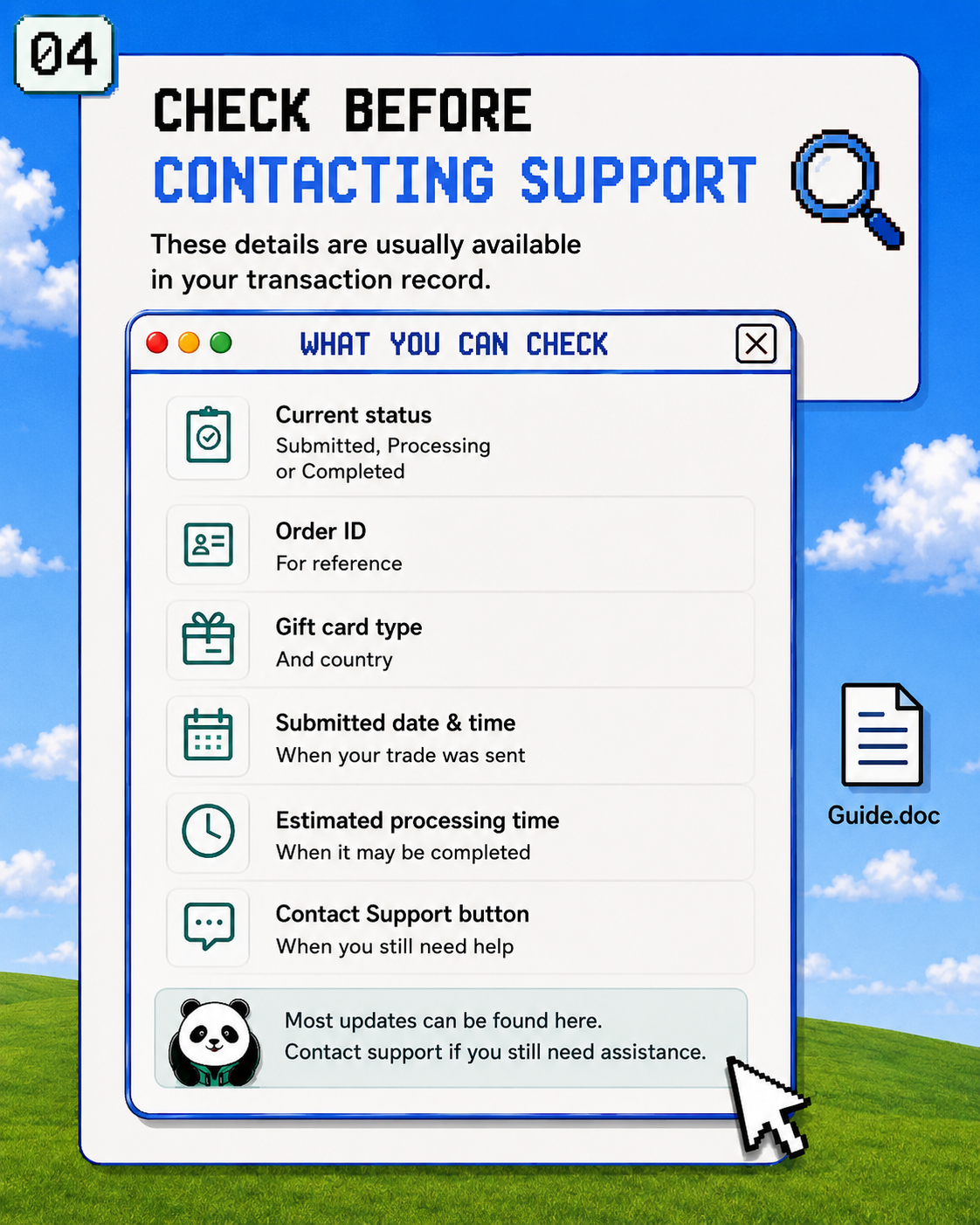
Check Before Contacting Support
Check whether the order is Submitted, Processing, Completed, or showing another update.
Save the transaction reference before contacting support.
Confirm the brand, country, denomination, and card type.
Check when the transaction was originally sent.
Review any processing estimate displayed in the order.
Look for any request for images, receipts, or additional information.
Do Not Reuse or Sell the Card Elsewhere
Once a gift card has been submitted and is under review, do not try to reuse, redeem, resubmit, or sell the same card through another channel.
- Keep the original card and purchase receipt
- Protect the gift card code
- Avoid duplicate submissions
- Follow the existing transaction
- Wait for official instructions
When You Should Contact Official Support
- The displayed estimated time has passed without an update
- The transaction status is unclear
- You cannot provide requested information through the available option
- The order details do not match your submission
- The result remains unclear after completion
- You suspect a technical problem
- The app instructs you to contact support
How to Prepare a Clear Support Request
A useful support request should include:
Avoid sending unrelated screenshots or repeatedly sending the same message without new information.
Check the latest rate, submit the correct card details, and confirm the source of the gift card before the transaction begins.
Check First, Then Contact Support
Your transaction record is the first place to look when you need an update about a PDCard trade.
It may already show the current status, Order ID, submission time, selected gift card category, estimated processing information, or a request for more details.
Review that information first. When the answer is still unclear, contact official PDCard support with the Order ID and relevant transaction details.
Review Transactions and Follow Your Order
Use the PDCard app to check available rates, submit gift cards, review transaction records, and follow the latest order status.
Use official PDCard links only. Never share your complete gift card code in a public group.
Apple gift card trading on PDCard
When you sell Apple gift cards, the order record is the best starting point for a support request. Keep the order ID and the quoted naira value so support can identify the specific trade instead of relying on a general rate screenshot.
Related guides: how to sell Apple gift cards in Nigeria and Apple gift card rates and naira value.