Withdrawal Missing? How to Check Transaction History on PDCard[2026]
Have you ever requested a withdrawal on PDCard and wondered where your money was? It can feel worrying when the withdrawal does not immediately appear in the destination account. In many cases, however, the latest information is already available inside your Transaction History.
Before contacting customer support, take a moment to review the transaction details shown in the app. This can help you understand the current status and prepare the correct information if further assistance is required.
Why You Should Check Transaction History First
When a user cannot find a withdrawal, the first reaction is often to contact support immediately. Although the PDCard support team is available to assist, checking your Transaction History first may provide the answer much faster.
The Transaction History page records the progress of your withdrawal requests. It can show whether the request is still being processed, whether it has already been completed or whether something requires your attention.
A withdrawal that is not yet visible in your receiving account is not automatically missing. Its current status may simply show that processing has not finished.
Where to Find Your Withdrawal History
Open the PDCard app and go to Transaction History. You will see your recent withdrawal activity together with details such as the transaction ID, amount, submission time and current status.
When searching for a particular withdrawal, compare the amount and time of submission. The transaction ID is especially important because it helps distinguish one request from another when several withdrawals have similar values.
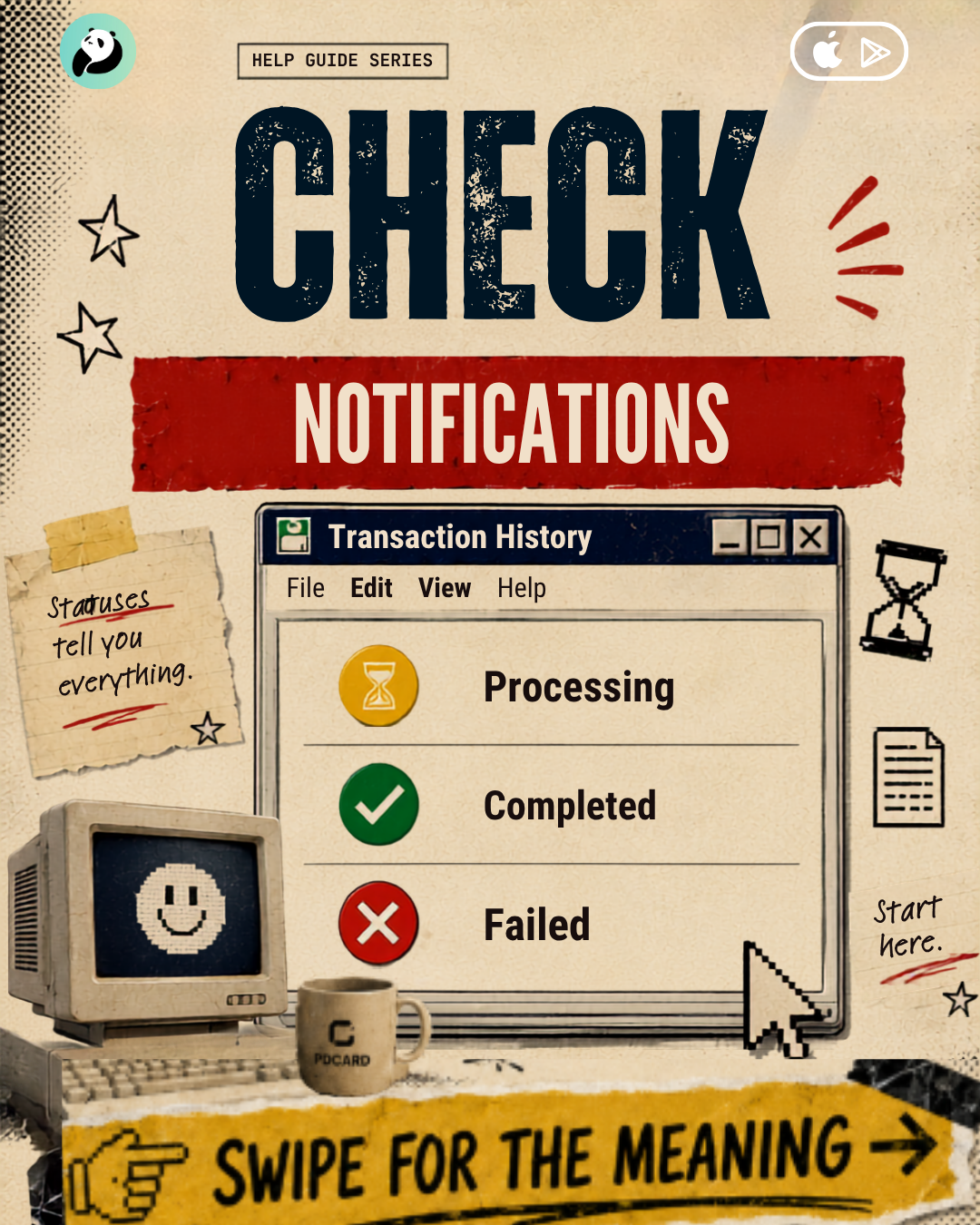
Understanding Your Withdrawal Status
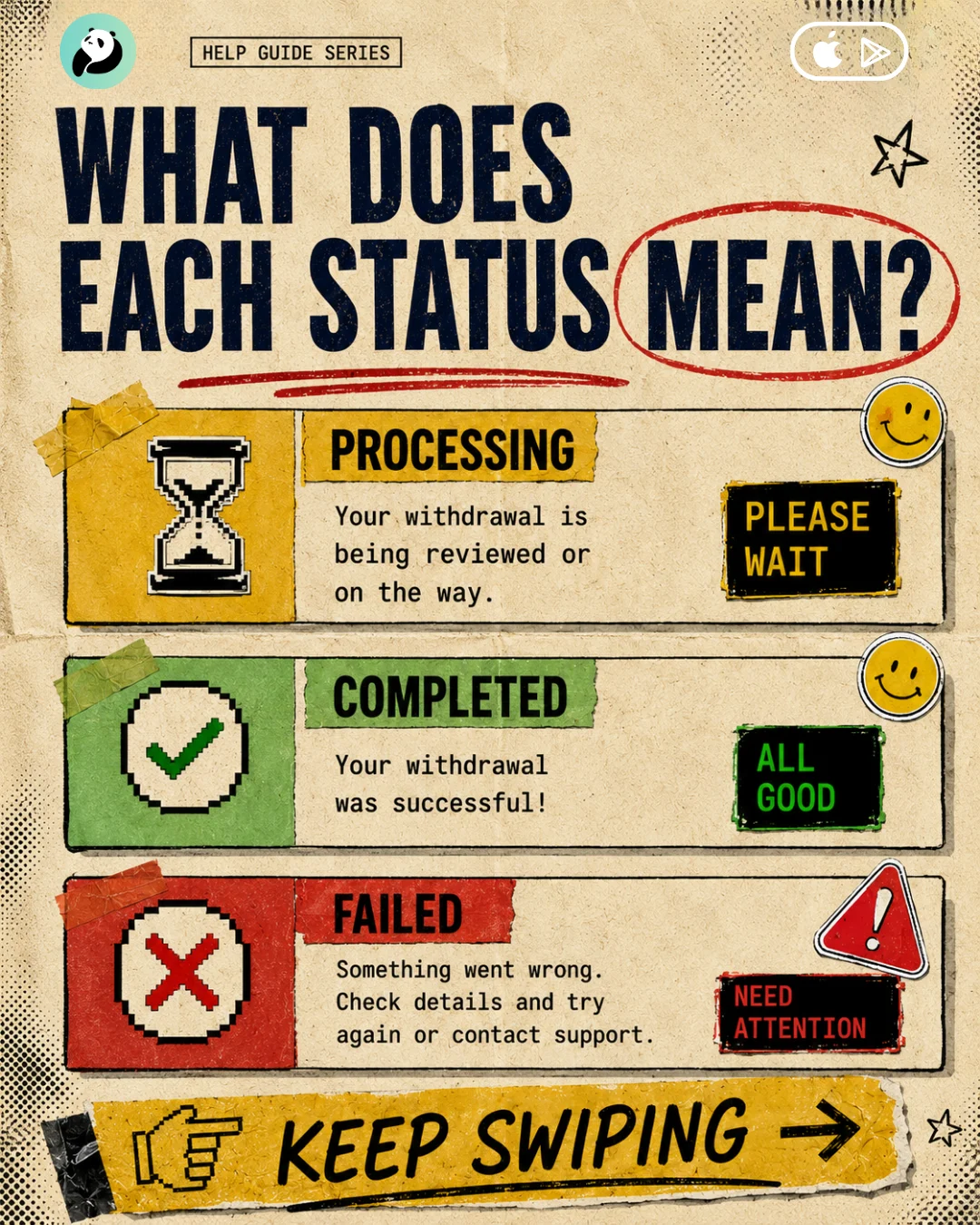
The status displayed beside a transaction explains what is currently happening. Understanding these labels can help you decide whether you should wait, check the receiving account or contact support.
Processing
If your withdrawal shows Processing, the request has been received and is still under review or on the way.
No additional action is normally required at this stage. Processing time may vary depending on the withdrawal method and current system activity.
Completed
A Completed status means the withdrawal has been processed. Check the bank account or payment destination selected when the request was submitted.
If the transaction is marked Completed but you still cannot confirm the payment, carefully verify that you are checking the correct receiving account.
Failed
A Failed status means the withdrawal could not be completed. This may happen when certain payment details require correction or when another issue prevents the request from being processed.
Review the transaction information shown in the app. Contact support if the reason is unclear or you need help with the next step.
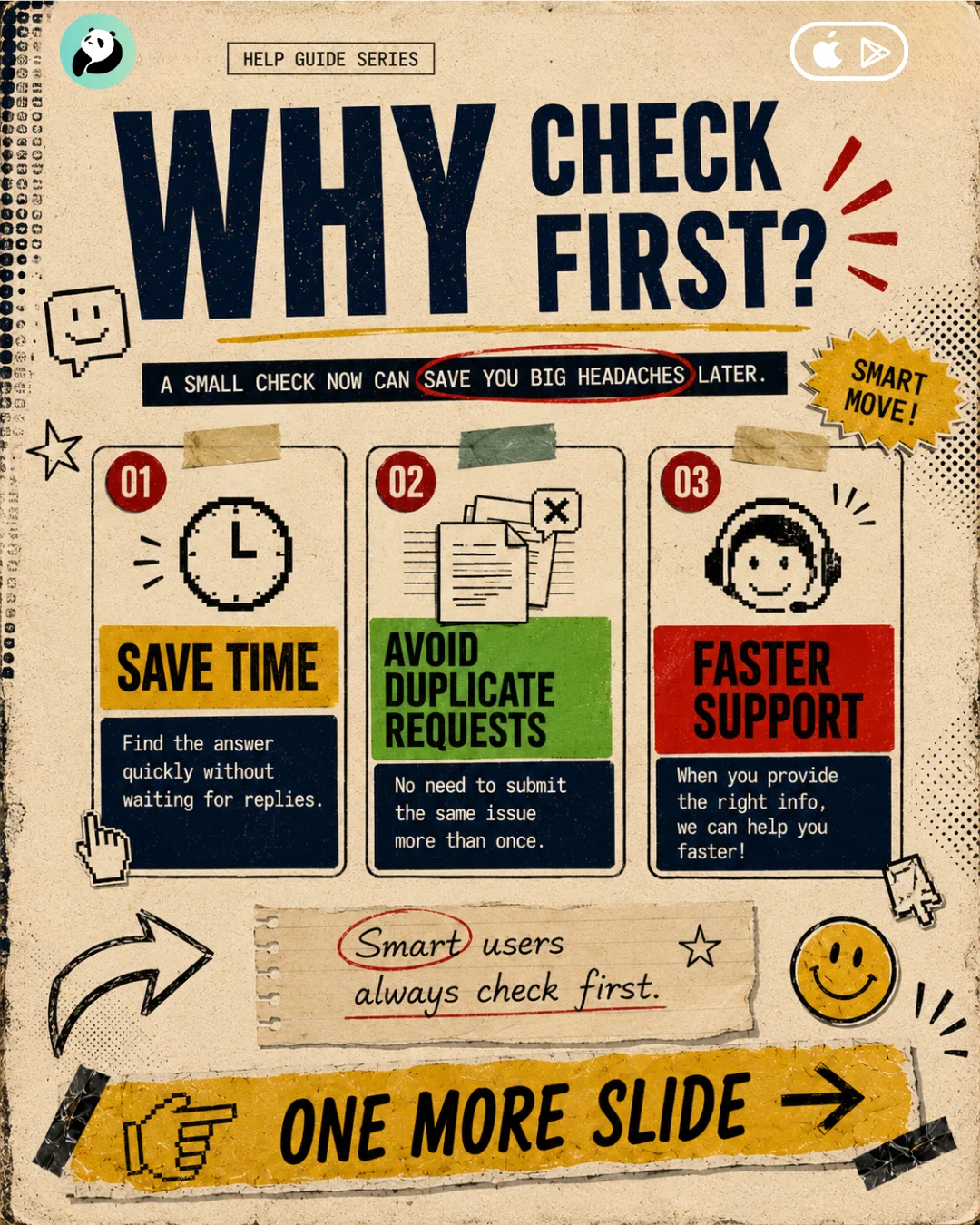
Why Checking First Can Save Time
Reviewing your Transaction History may give you an immediate answer without waiting for a support response. It can also prevent duplicate requests from being submitted for the same withdrawal.
If support is still required, checking first allows you to provide the correct transaction information from the beginning. This gives the support team a clearer starting point when reviewing your case.
When You Should Contact PDCard Support
You should contact support when a withdrawal has remained under Processing much longer than expected, when it shows Failed without a clear explanation or when it is marked Completed but cannot be confirmed in the selected receiving account.
Before sending your message, prepare your PDCard UID, the relevant Transaction ID and a clear screenshot showing the transaction status.
Including these details in your first message can help the support team identify the transaction and review the issue more efficiently.

Stay Connected With the PDCard Community
Join the official PDCard community channels to receive new help guides, platform updates and general information.
Join the official PDCard WhatsApp Group
Join the official PDCard Telegram Community
Final Thoughts
A withdrawal that you cannot immediately locate does not always mean something has gone wrong. In many cases, Transaction History already contains the latest update you need.
Check the status, confirm the amount and transaction ID, and allow an ongoing request time to finish processing. When assistance is still needed, send the relevant details and screenshot to support so that the issue can be reviewed properly.
Manage Your Transactions in the PDCard App
Use the official PDCard app to check transaction updates, review your activity and access the support tools available for your account.
Continue Reading
How to Identify the Correct Gift Card Before Submitting
Learn how to confirm the correct gift card brand, country, currency and denomination before submitting it on PDCard.
Prepare the Right Details Before Contacting PDCard Support
Find out which account and transaction details you should prepare before requesting assistance from the PDCard support team.
Learn how to check your PDCard withdrawal in Transaction History, understand Processing, Completed and Failed statuses, and know when to contact support.Apple gift card trading on PDCard
If you sell Apple gift cards and later cannot locate a withdrawal, check the card order and the withdrawal record separately. A completed card trade and a bank withdrawal are different stages, so provide the relevant record when asking support for help.
Related guides: how to sell Apple gift cards in Nigeria and Apple gift card rates and naira value.