Have Multiple Gift Cards? How to Submit Each Card Correctly on PDCard [August 2026]
Current estimated payouts
Apple gift cards issued in the United States. Face values are in USD. Payout estimates are in Nigerian naira before any applicable fees.
| Card type | US$100 | US$200 | US$500 |
|---|---|---|---|
| Physical card | ₦131,415.50 | ₦264,563.00 | ₦665,737.50 |
Last rate check . Earliest quote expiry (Lagos time).
Confirm your quote in the app before selling. Final payout is determined after review. Get the official PDCard app.
When you have several physical gift cards to trade, taking one photo of the entire stack may look like the fastest option. However, one crowded image can make it difficult to see which card belongs to each submission.
Bulk Apple submissions and individual denomination rates
Keep each code, country, category and individual value separate. Check one USA Physical US$100, US$200 and US$500 card individually before adding the estimated payouts. Entering US$800 would price a single card.
Sell Apple gift cards in Nigeria: trading and bulk guide · Apple payouts for US$100, US$200 and US$500 by card type. Confirm the correct category and current app quote before submission.
On PDCard, the safer and clearer method is simple: prepare the cards together, but submit each physical card separately.
1. Five Cards Should Not Become One Crowded Photo

Having several physical gift cards does not mean putting all of them into the same photo or submission.
On the PDCard app, each physical card should be completed separately with its own card details, front image and back image.
When several cards are squeezed into one photo, each card occupies only a small part of the image. Important information may become too small, unclear or difficult to connect with the details selected in the app.
Before photographing anything, separate the cards and keep only the card you are currently preparing inside the camera area. You can also read how to identify the correct gift card before submitting .
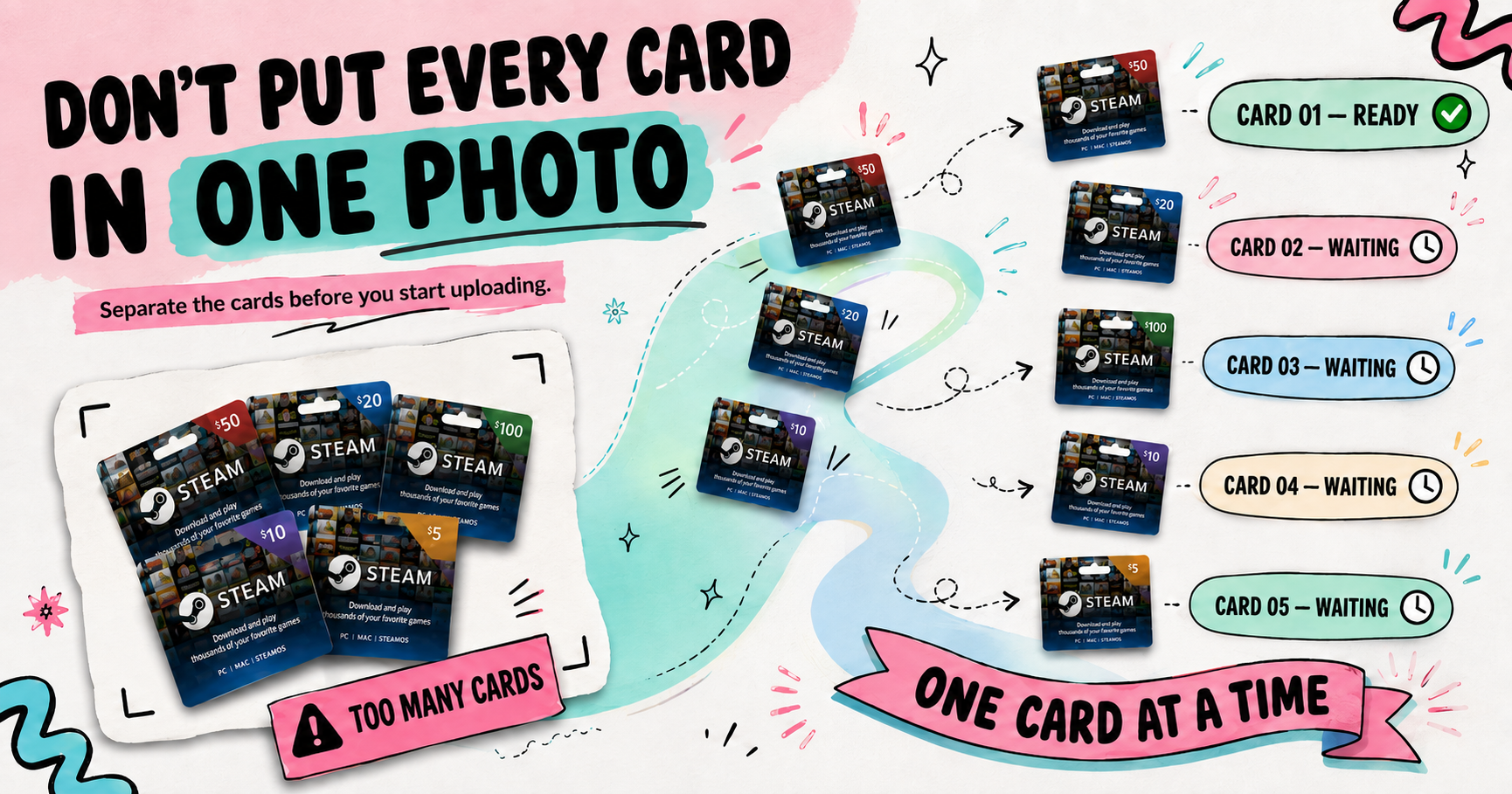
Separate the cards first. Do not make several cards compete for space inside one photo.
2. Prepare All Five Cards Before Starting
Preparing the cards together is useful, even though the cards should not be uploaded together. For example, if you have five cards, place them in a clear order before opening the selling flow.
A Simple Preparation Routine
- Separate the five cards.
- Give them a clear order from 01 to 05.
- Keep matching front and back sides together.
- Check the brand, country and amount of each card.
- Begin with Card 01 only.
This preparation makes it easier to remember which cards are waiting, which card is currently being submitted and which cards have already been completed.
3. Match the Front and Back of One Card
A physical gift card submission may require both a front image and a back image. These two images should belong to the same card.
Do not photograph the front of Card 01 and accidentally upload the back of Card 02. Even if both cards have the same brand and value, they are still two different physical cards.
Keep One Working Pair
Place the current card in front of you and move the remaining four cards away from the photo area. Photograph its front, turn over the same card, then photograph its back.
Clear individual images also reduce avoidable image problems. See five gift-card image mistakes that may cause a card to be rejected .
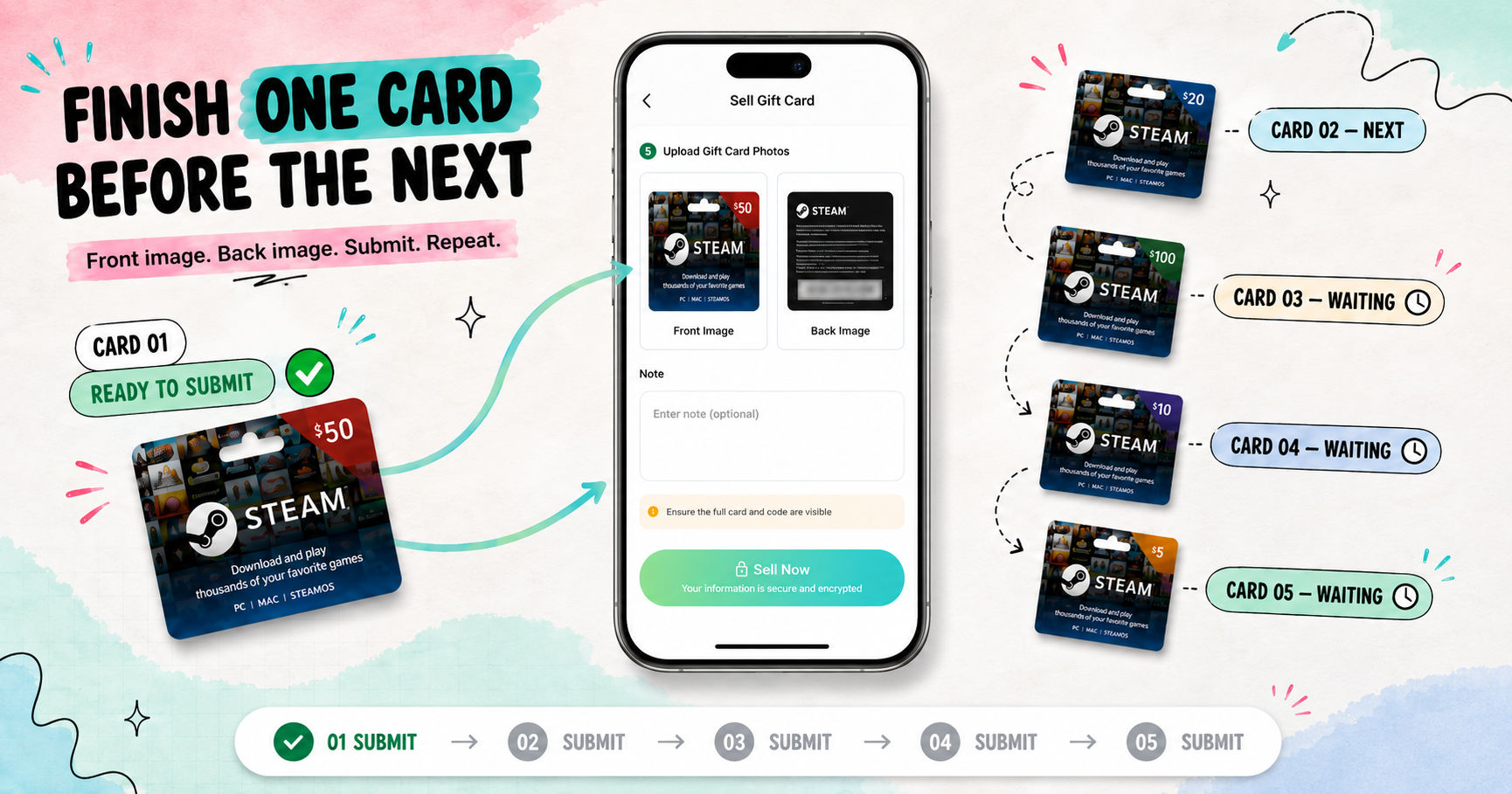
One physical card should have its own matching details, front photo and back photo.
4. Finish One Submission Before Starting the Next
After choosing the correct card type, country and amount, upload the matching front and back images for the current physical card. Review the information before pressing Sell Now.
Before Pressing Sell Now
- Confirm the full card is visible.
- Check that both images belong to the current card.
- Make sure another card does not appear in either image.
- Confirm the selected details match the uploaded card.
Once the submission is complete, move that card into a separate “submitted” group. Then return to the selling page and begin a new submission for Card 02.
5. Submit, Move the Card and Repeat
After completing Card 01, move it away from the cards still waiting. Repeat the same process for Cards 02, 03, 04 and 05.
This creates five clear submissions instead of one confusing group. It also makes it easier for you to track which physical card belongs to each transaction.
Prepare the cards together,
but submit them separately.
Avoid submitting the same card again while its existing transaction is still being handled. Learn whether the same gift card can be submitted more than once .
A few extra minutes spent organizing five physical cards can make the entire submission process easier to understand and manage.