Why Some Gift Card Trades Take Longer to Review on PDCard[2026]
Blurry image? Wrong details? That is often how review time starts doing overtime.
When you submit a gift card on PDCard, the uploaded image and selected card information must be clear enough for the review process. If the image is difficult to read or the submitted details do not match the actual card, the transaction may require additional checking.
A longer review does not always mean there is a problem with your gift card. In many cases, clearer or more accurate information is needed before the transaction can move forward.
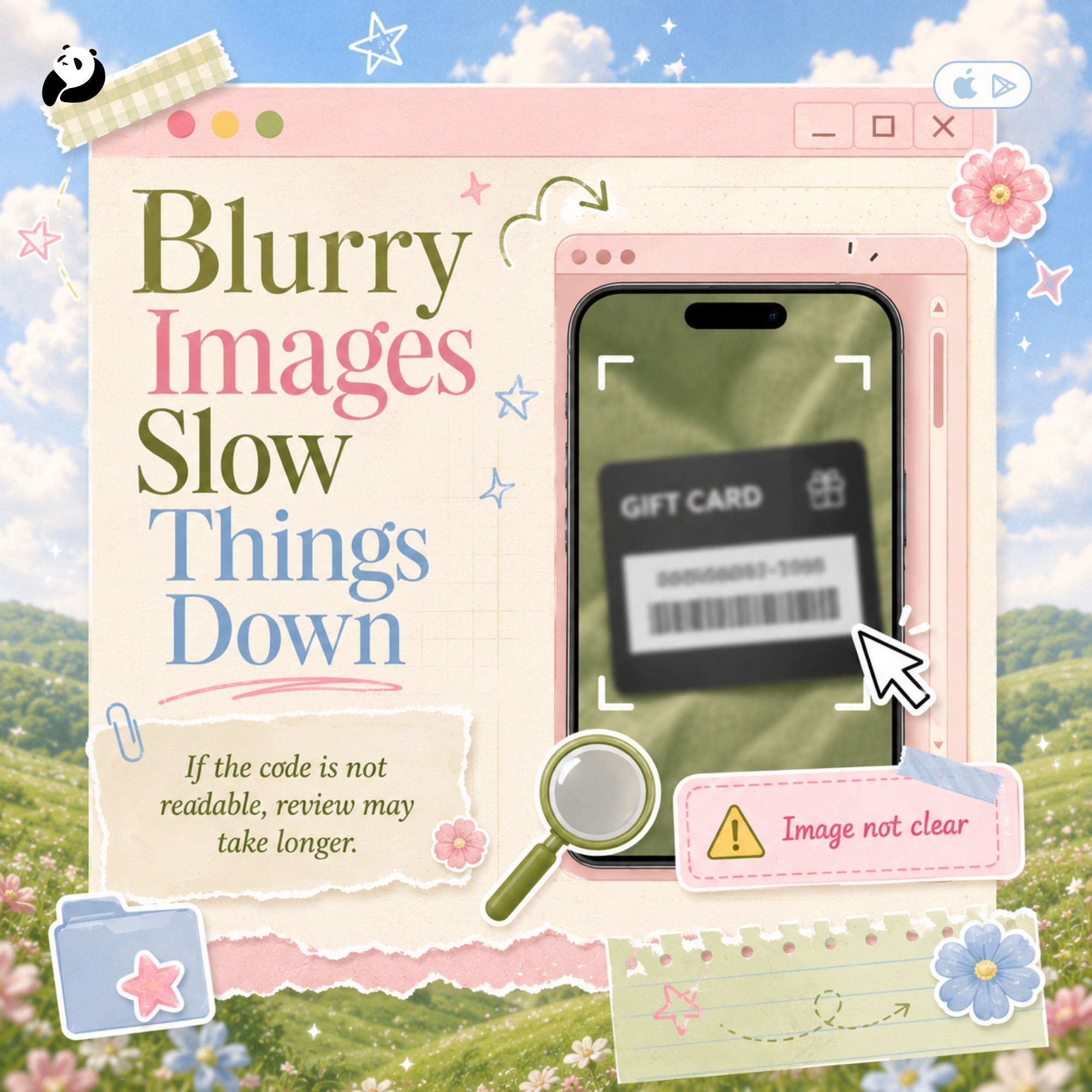
Why Gift Card Review Time Can Vary
Not every gift card submission requires the same level of checking. A trade with a clear image and complete information may be easier to review, while an incomplete or mismatched submission may require more attention.
Review time may be affected by:
- Whether the uploaded image is clear and readable
- Whether the selected gift card category is correct
- The country, region, and currency of the card
- Whether the card is physical or an e-code
- The selected denomination
- Whether a receipt or purchase proof is required
- Whether the submitted information needs additional verification
The clearer and more accurate your submission is, the easier it is to review.
1. Blurry Gift Card Images Can Slow the Review
A blurry image can make important card information difficult to confirm. The reviewer may need to check the gift card brand, code, amount, country, currency, receipt, or other required information.
If these details are unclear, cropped, covered, or affected by glare, the transaction may require another review or a clearer image.
How to Take a Clear Gift Card Photo
Place the card on a flat surface in a well-lit area. Hold your phone steadily and keep the full card inside the frame.
Avoid submitting images that are:
- Dark or poorly lit
- Blurry or out of focus
- Cropped around the edges
- Covered by fingers or other objects
- Affected by strong reflections
- Compressed or too low in resolution
Before submitting, zoom in and confirm that the required card information is readable.
Image problems can do more than increase review time. A gift card may also be rejected when its code, receipt, or required details cannot be verified. See the common mistakes in Why Was Your Gift Card Rejected? 5 Image Mistakes to Avoid on PDCard.
2. Wrong Gift Card Details Require Extra Checking
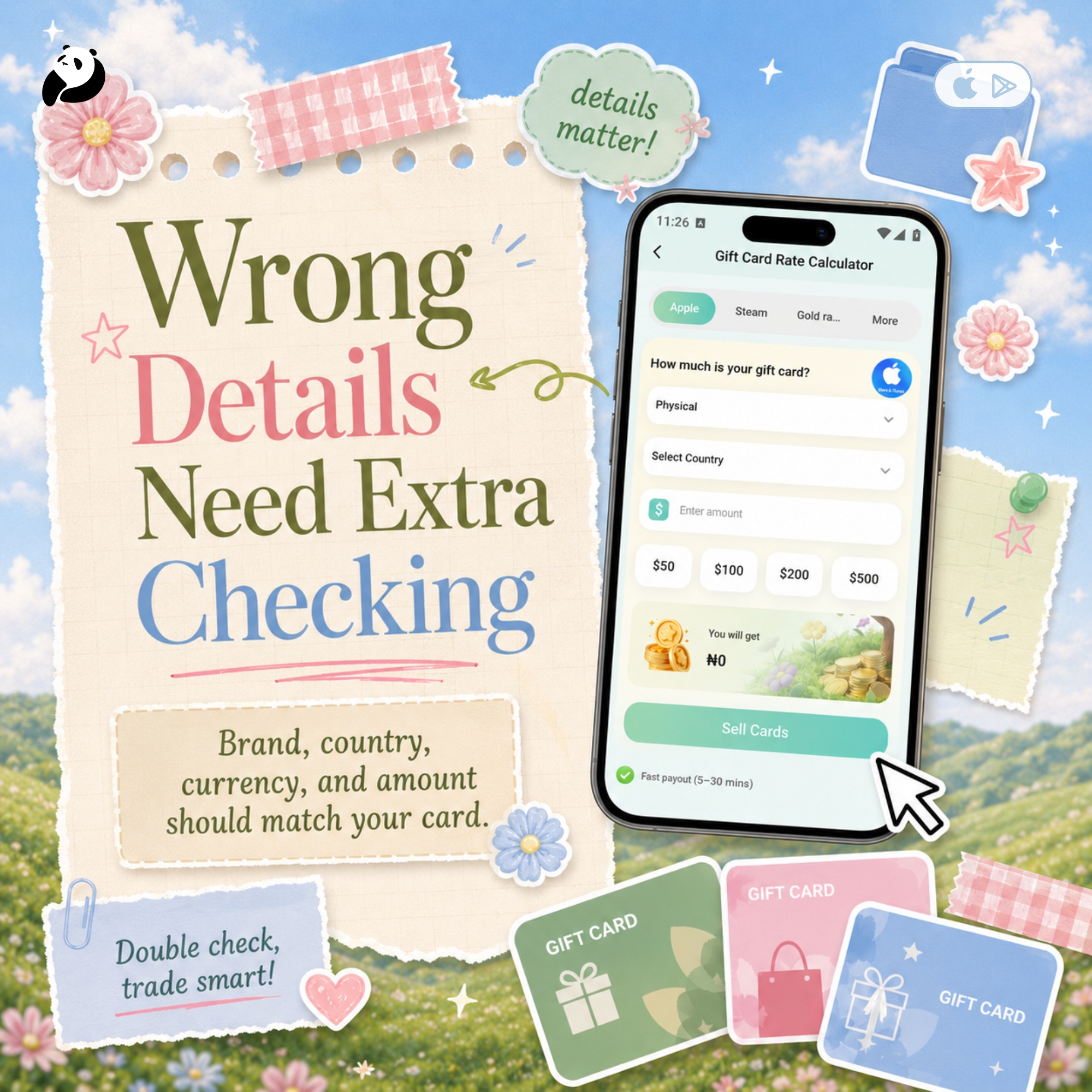
Image quality is not the only factor that affects review time. The information selected in the PDCard app must also match the gift card being submitted.
These details matter because different categories may have different available rates, submission requirements, and review processes.
Selecting a category that only looks similar to your card can lead to additional checking. Learn how category mistakes may affect a transaction in Wrong Gift Card Category: Why It Can Slow Down Your Trade.
3. Why Card Type Matters
Physical gift cards and e-codes may belong to the same brand, but they are not always processed in the same way.
A physical card is normally photographed and uploaded, while an e-code is delivered digitally. The required information, supporting documents, and available rate may differ depending on the category.
Selecting the wrong card type may cause the information to be checked again. Before submitting, confirm whether you have a physical card, an e-code, or a card that requires a receipt.
Learn more about identifying the correct card type in Why Card Type Is Important When Trading Gift Cards.
4. Some Gift Cards Need Additional Verification
Even when the uploaded image is clear and the selected information appears correct, some gift cards may still require additional verification.
This may happen when the card format, receipt, country, currency, ownership information, or other submitted details need further confirmation. Standard security checks may also affect how long the review takes.
PDCard Support may ask you to provide a clearer image, the correct receipt, additional card details, or information connected to the existing order.
A request for more details does not automatically mean that the gift card has been rejected. It usually means that the current submission does not contain enough information to complete the review.
When support requests additional information, provide the requested details and keep your original order ID. Avoid submitting the same gift card again unless official support specifically instructs you to do so.
Read Why PDCard Support May Ask for More Details to understand what information may be requested and why it may be needed.
5. Do Not Submit the Same Card Repeatedly
If your gift card order is already under review, avoid submitting the same card again. Duplicate submissions may make it more difficult to identify and follow the correct order.
Instead, you should:
- Open your transaction history
- Check the current order status
- Keep your original order ID
- Wait for the review result
- Provide additional information only when requested
- Contact official support when you need help
Repeatedly submitting the same card does not guarantee a faster review.
How to Submit a Gift Card Correctly on PDCard
Review your information before submitting the gift card. The checklist below can help you confirm that the image, category, and card details are complete.
New users can follow the complete process for checking a rate, selecting a category, uploading a gift card, submitting an order, and tracking its status in How to Sell Gift Cards on PDCard (Nigeria) | Gift Card Exchange Trading Guide.
Download the PDCard App
Use the PDCard app to check available rates, select the correct card category, submit your gift card, and follow the transaction status.
Get Official PDCard Updates
For official announcements, trading information, and community updates, use the official PDCard community channels.
PDCard Official WhatsApp Group
PDCard Official Telegram Group
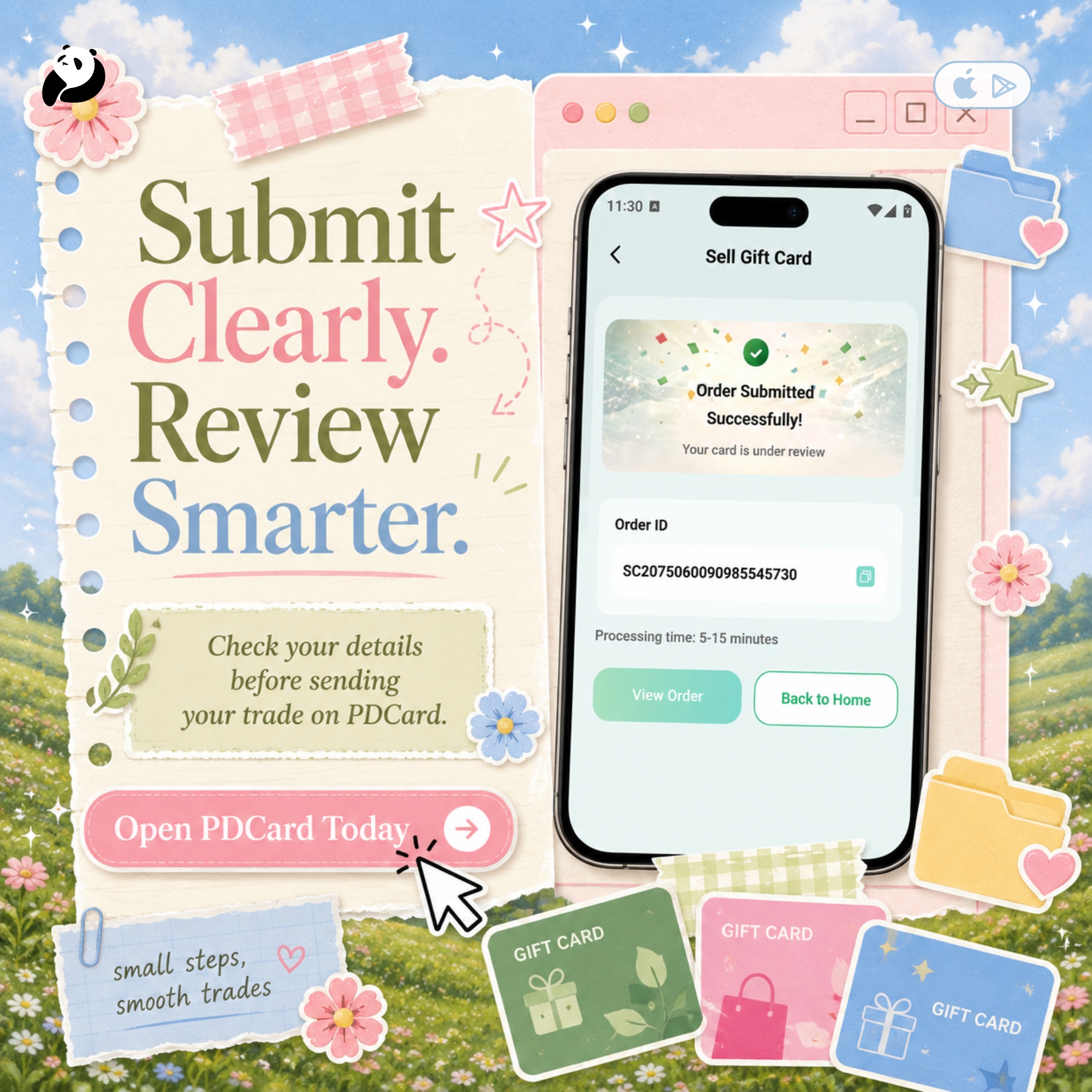
Submit Clearly and Review Smarter
A clear image and accurate card information give the review team the details needed to check your submission.
Before sending your trade, confirm that the image is readable and that the selected brand, country, currency, denomination, and card type match the actual gift card.
Submit the card once, keep your order ID, and follow the transaction through the official PDCard app. These small checks can help reduce avoidable delays.
Apple gift card trading on PDCard
If you plan to sell Apple gift cards, allow time for the card checks described above. Confirm the available rate before submission and follow the existing order status rather than resending the same code while review is pending.
See how to sell Apple gift cards and check Apple gift card rates.
Explore PDCard creator content
Watch this PDCard creator post from Stanley Savvy alongside the review guidance above. Check your actual order status in the app; a creator video does not guarantee a completion time for an individual trade.
Stanley Savvy PDCard creator video
Creator: Stanley Savvy — watch the original TikTok post. Produced in collaboration with PDCard. Any rate or promotion in the video reflects its publication context; confirm the current app quote before trading.