How to Change Your Password in the PDCard App [2026]
How to Change Your Password in the PDCard App
Keeping your account password secure is an important part of protecting your personal information and transaction activity.
You may need to change your password when you believe someone else knows it, when you have used the same password for a long time, or when you simply want to improve your account security.
This guide explains how to change your password in the PDCard app in four simple steps.
How to Change Your Password in the PDCard App
Follow these four steps to change your PDCard password.
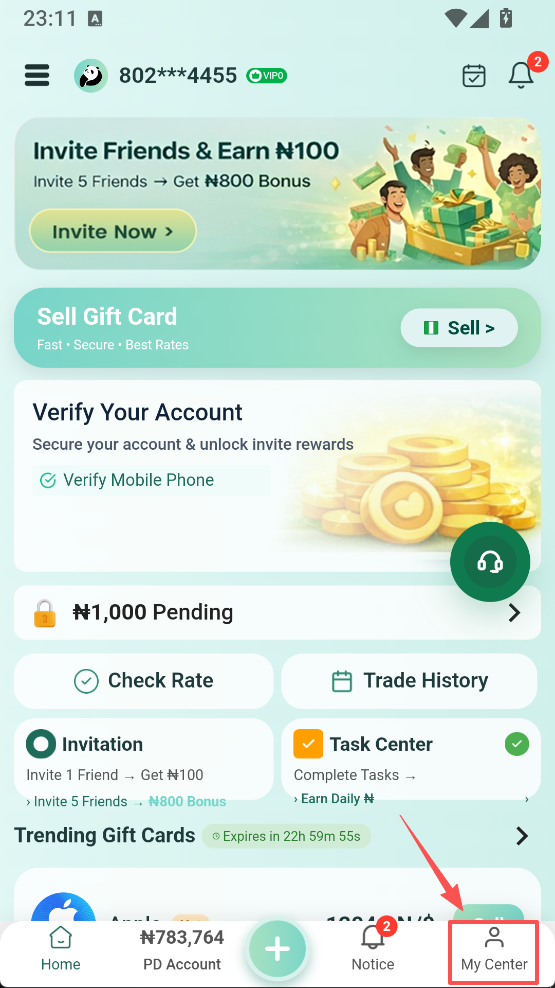
Step 1: Open My Center
Open the PDCard app and sign in to your account.
From the home screen, tap My Center in the bottom-right corner. This section contains your account tools, settings, support options, and security features.
Step 2: Open Account Settings
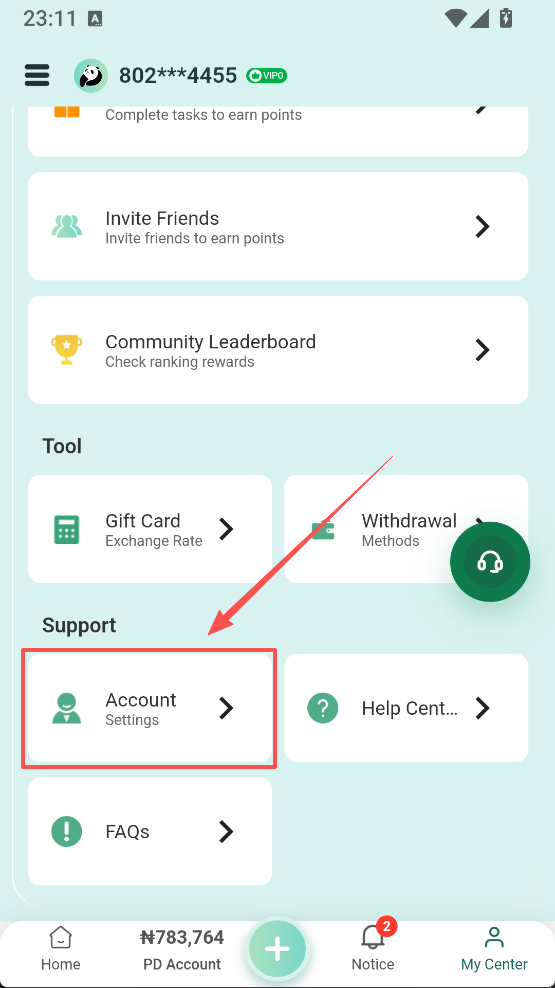
Scroll down until you find the Support section.
Tap Account Settings to access the security and personal information connected to your PDCard account.
Step 3: Select Change Password
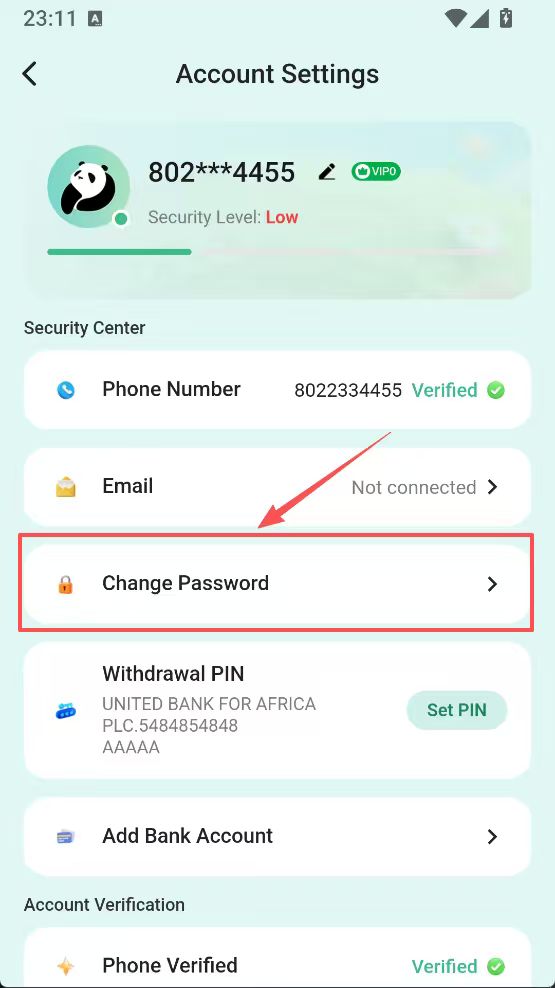
Inside Account Settings, find the Change Password option under the Security Center section.
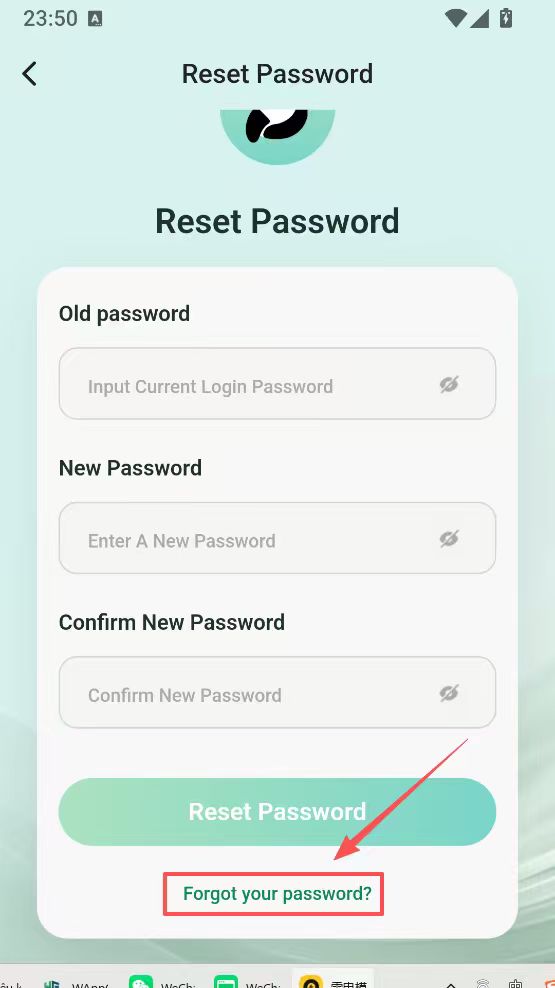
Tap it to open the Reset Password page.
Step 4: Enter and Confirm Your New Password
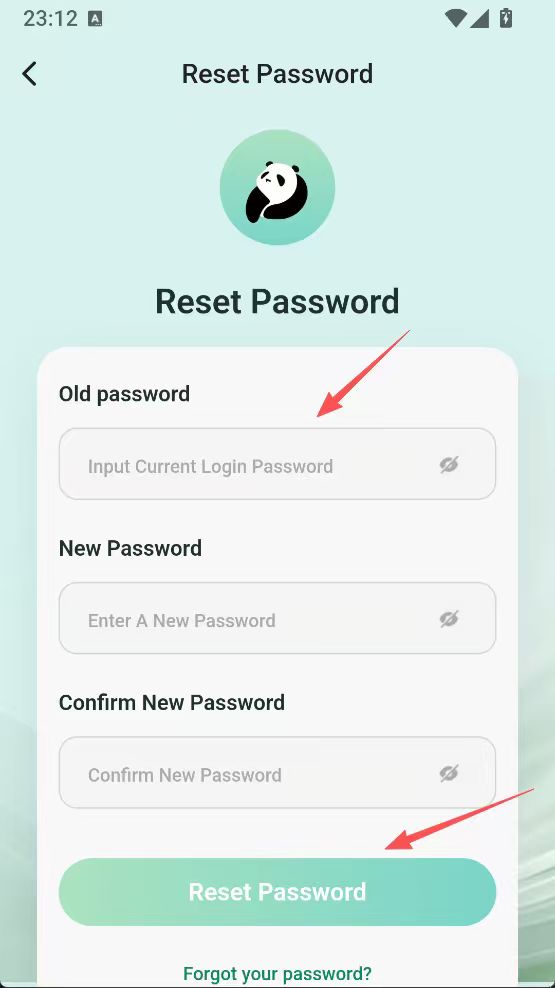
Complete the required password fields:
- Enter your current password.
- Enter your new password.
- Enter the new password again to confirm it.
Check that both new-password entries match, then tap Reset Password to complete the change.
After updating the password, use your new password the next time you sign in to PDCard.
How to Create a Strong PDCard Password
Your new password should not be easy to guess. Avoid using basic information such as your name, phone number, birthday, or simple number combinations.
A stronger password may include:
- Uppercase and lowercase letters
- Numbers
- Special characters
- A combination that is not used for another account
Avoid passwords such as:
- 123456
- 000000
- Your phone number
- Your date of birth
What Should You Do If You Forget Your Current Password?
The Change Password page may require your old password before you can create a new one.
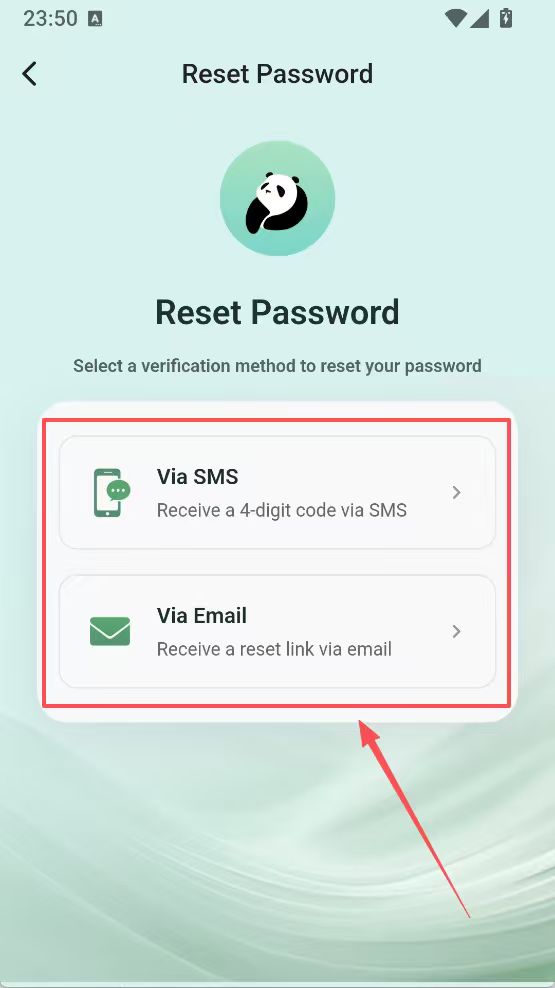
When you cannot remember it, select Forgot your password? on the Reset Password page and follow the available recovery instructions.
Make sure you have access to the phone number, email address, or other verification method connected to your account.
What If the New Password Is Not Accepted?
When the password recovery process does not work, contact official PDCard customer support for assistance. Never send your current password, verification code or withdrawal PIN to another person
Your password change may not be completed for several reasons.
The Current Password Is Incorrect
Check that you entered the password currently connected to your PDCard account. Passwords are usually case-sensitive, so uppercase and lowercase letters must be entered correctly.
The New Passwords Do Not Match
The password entered in the New Password field must match the password entered in the Confirm New Password field.
The New Password Does Not Meet the Requirements
The app may require a minimum password length or a combination of letters and numbers. Follow the password instructions displayed on the screen.
How to Reset Your PDCard Password When Logged Out
If you cannot sign in because you have forgotten your password, you can reset it directly from the PDCard login screen.
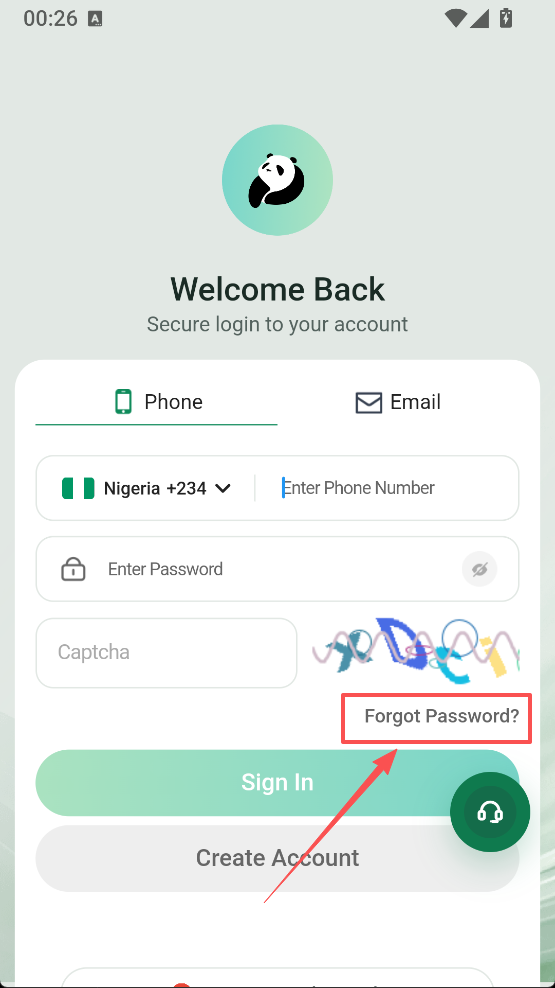
Step 1: Select Forgot Password
Open the PDCard login page and tap Forgot Password? below the password field.
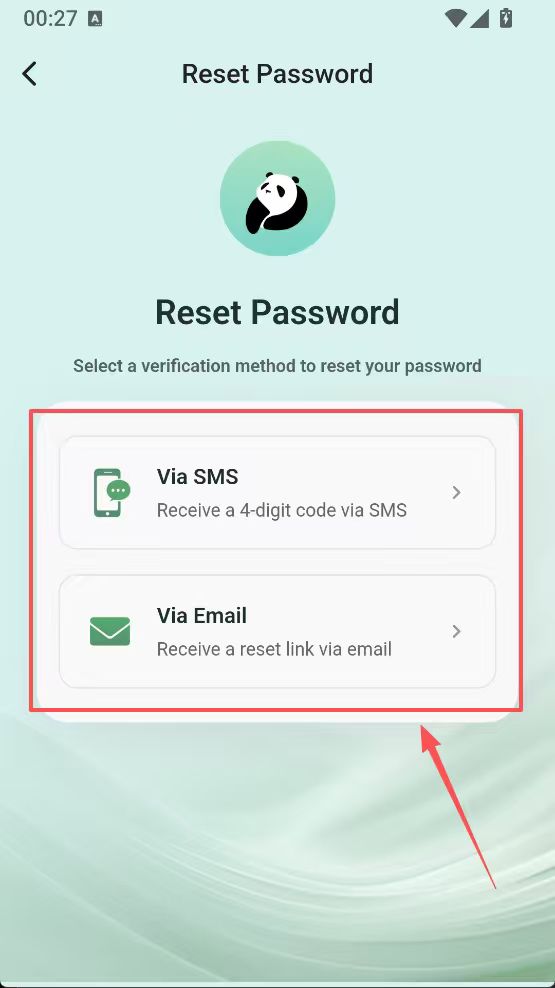
Step 2: Choose a Verification Method
Choose how you would like to verify your identity. You can receive a verification code through SMS or a reset link through email, depending on the information connected to your account.
Step 3: Complete the Verification
Enter your registered phone number or email address, then provide the verification code or follow the reset link sent to you. Make sure the information matches the details connected to your PDCard account.
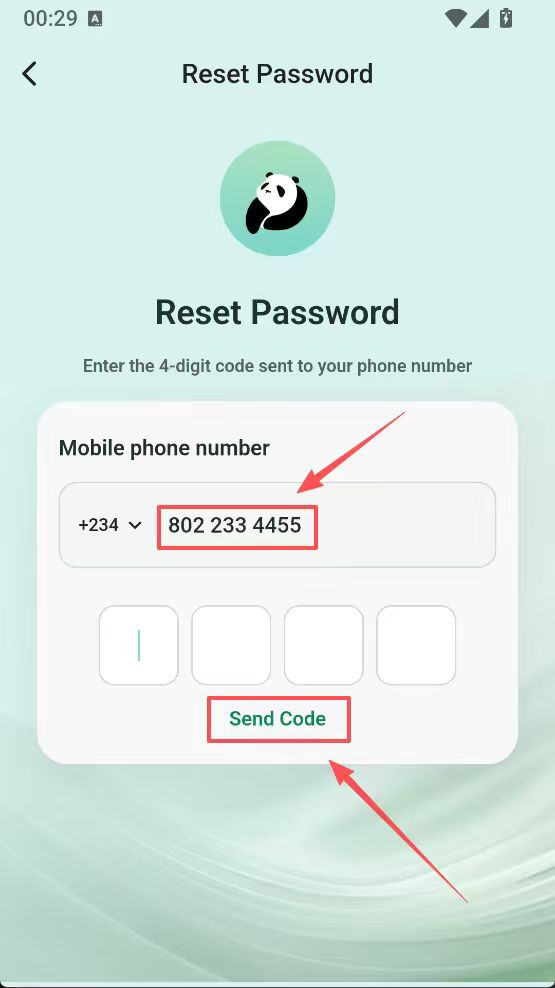
Step 4: Create a New Password
Enter your new password and type it again in the confirmation field. Check that both entries match, then tap Reset Password to complete the process.
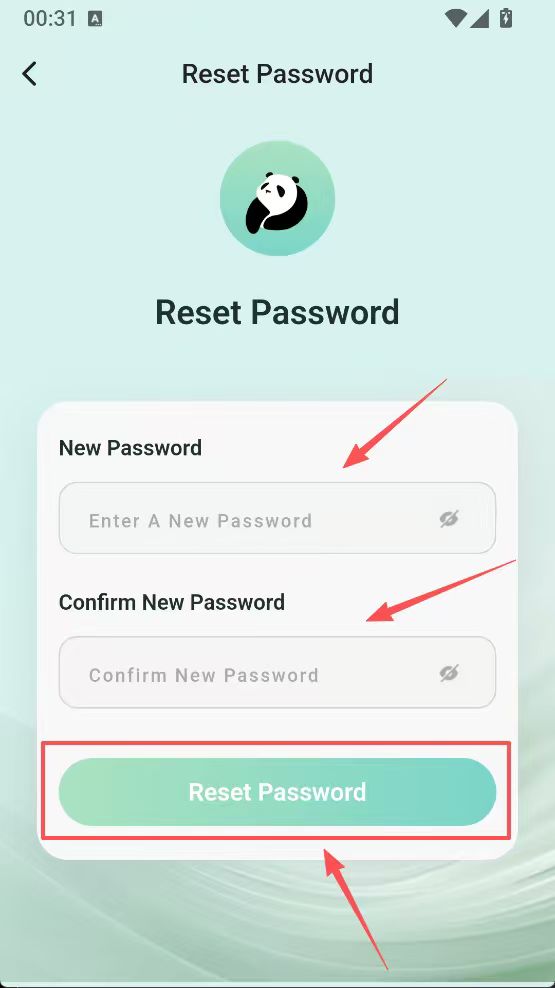
After the password has been reset successfully, return to the login screen and sign in using your new password. Never share your verification code or password-reset link with another person.
Important Account Security Tips
Protect Your Verification Codes
Do not share one-time passwords, login codes, or other security information with anyone.
Review Your Connected Information
Check that the phone number and email address connected to your PDCard account are correct and accessible.
When Should I Change My Password?
Change it immediately when you notice suspicious activity, believe it has been exposed, or have used it on another platform.

Download PDCard on App Store or Google Play.
Apple gift card trading on PDCard
Keeping your login secure protects the account you use to sell Apple gift cards and manage the proceeds. After changing your password, use the official app to review account activity and check the current Apple rate before starting a new trade.
Related guides: how to sell Apple gift cards in Nigeria and Apple gift card rates and naira value.