How to Add Bank into PDCARD? A Complete Step-by-Step Guide [2026]
How to Add Bank into PDCard: A Complete Step-by-Step Guide
Before withdrawing money from your PDCard account, you need to connect a valid bank account. Adding the correct bank information allows PDCard to identify where your withdrawal should be sent.
So, how to add bank into PDCard?
The process is simple. Open My Center, enter your account settings, select Add Bank Account, provide your bank details, and save the information.
This guide explains every step clearly, including the information you should check before adding your bank account.
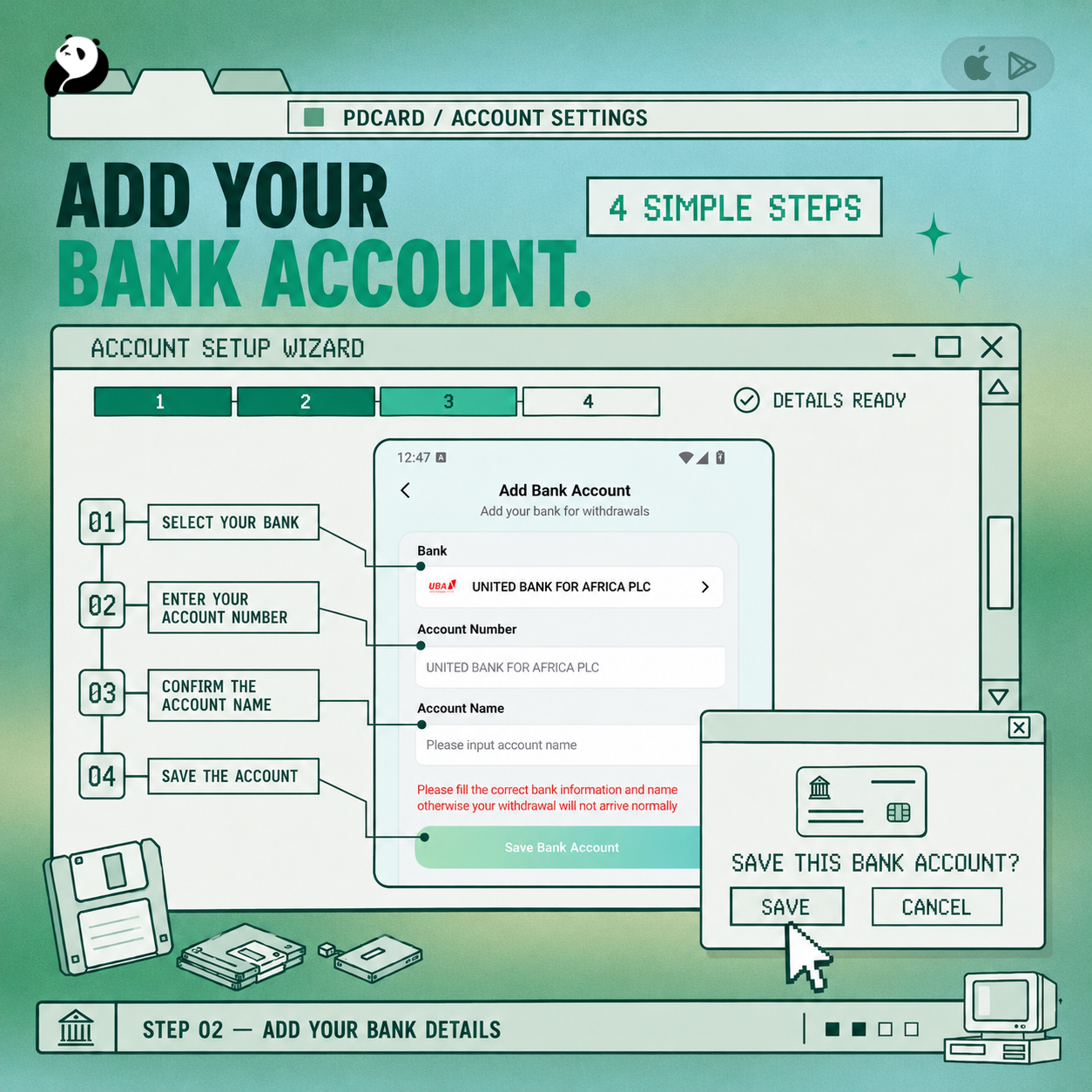
Information You Need Before Adding a Bank Account
Before starting the PDCard bank account setup, prepare the following information:
Bank Name
Select the financial institution where your account is registered.
Account Number
Enter the correct bank account number. Check every digit carefully before saving it.
Account Name
Enter the account holder’s name associated with the bank account.
The account name should match the information registered with your bank. Avoid using nicknames, shortened names, or another person’s information unless the bank account legally belongs to that person and the platform permits it.
How to Add Bank into PDCard
Follow these four steps to add your bank account to PDCard.
Step 1: Open the PDCard App
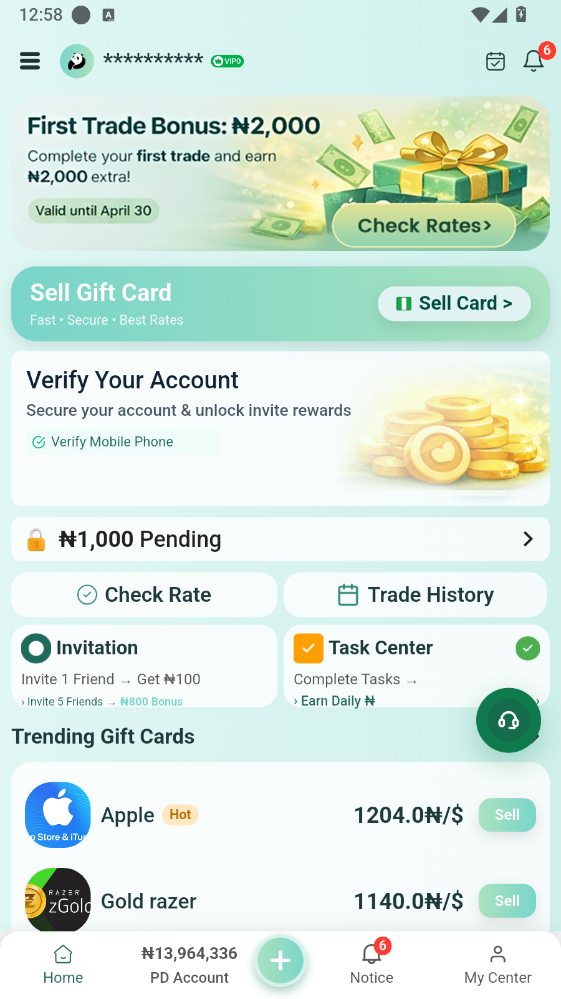
Open the PDCard application and sign in to your account.
After logging in, you will arrive at the main home screen, where you can access features such as:
- Sell Gift Card
- Check Rate
- Trade History
- Invitation
- Task Center
- My Center
Make sure you are signed in to the correct PDCard account before changing any banking information.
Step 2: Select “My Center”
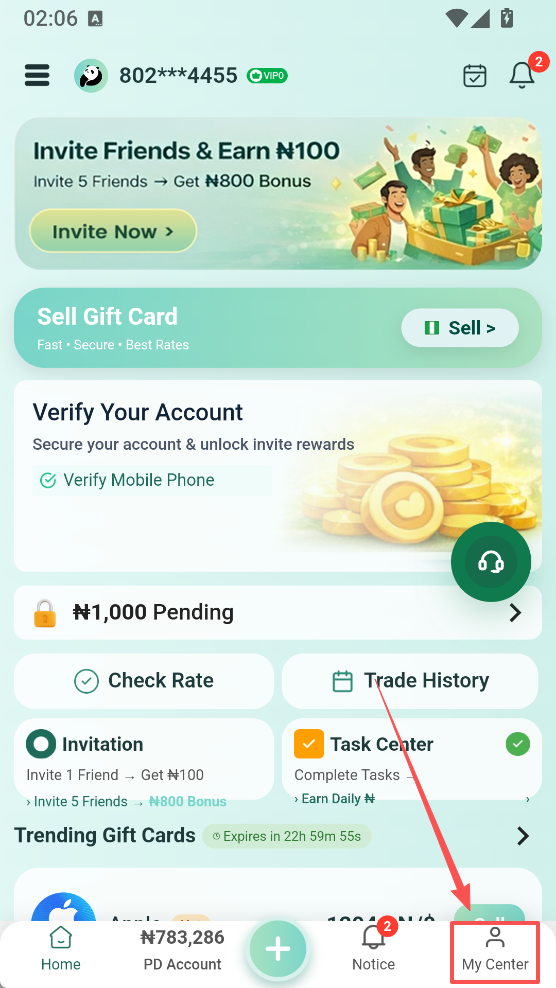
Look at the navigation bar at the bottom of the home screen.
Tap My Center in the bottom-right corner.
This section contains account tools, security settings, rewards, support options, and other personal account features.
Step 3: Open “Account Settings”
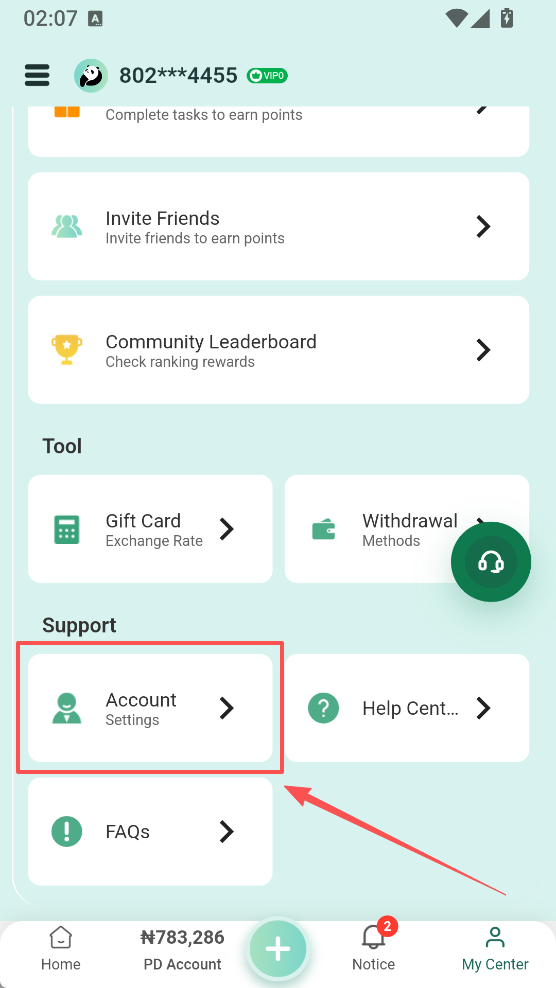
Scroll down until you reach the Support section, then select Account Settings.
The Account Settings page allows you to manage important account information, including:
- Phone number
- Email connection
- Password
- Withdrawal PIN
- Bank account
- Account verification
- Google connection
To continue linking a bank account to PDCard, select the banking option.
Step 4: Add and Save Your Bank Account
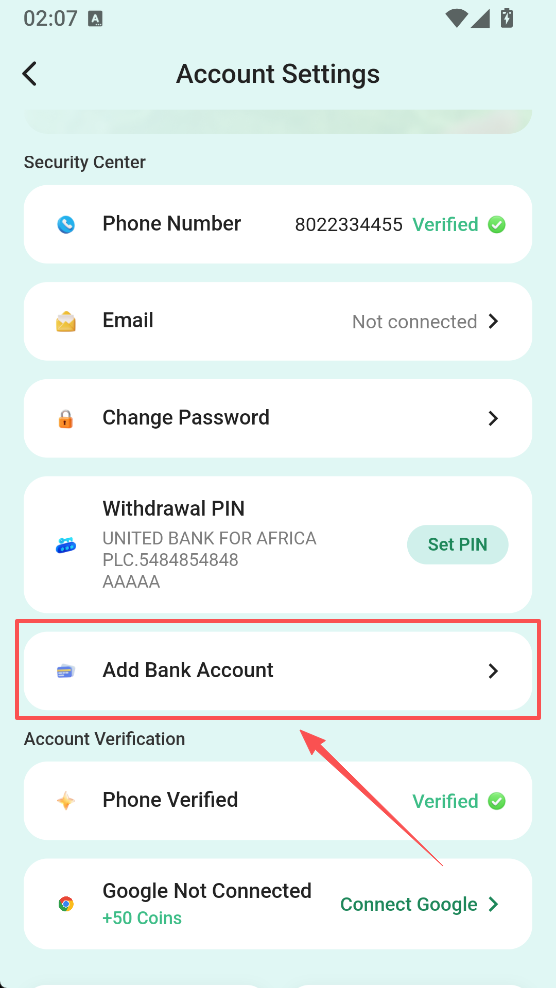
Tap Add Bank Account, then select your bank and enter the correct account number and account name. Review the information carefully to make sure it matches your bank records.
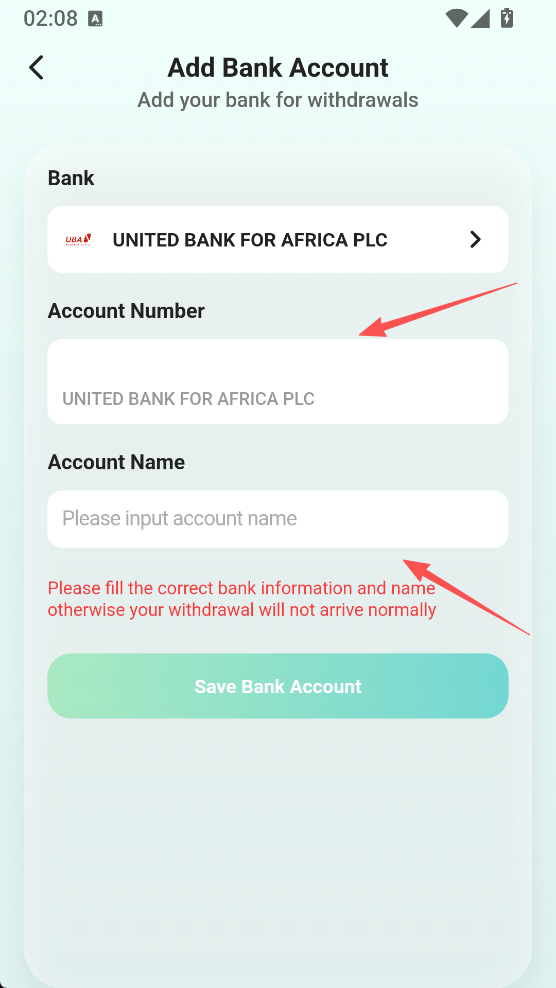
Once all details are correct, tap Save Bank Account to complete the setup.
The complete process includes only four steps:
- Open the PDCard app.
- Select My Center.
- Open Account Settings.
- Add and save your bank account.
What to Do if You Cannot Save Your Bank Account
The “Save Bank Account” Button Does Not Work
Confirm that all required fields have been completed.
You can also:
- Check your internet connection.
- Close and reopen the application.
- Sign in again.
- Update the PDCard app when an update is available.
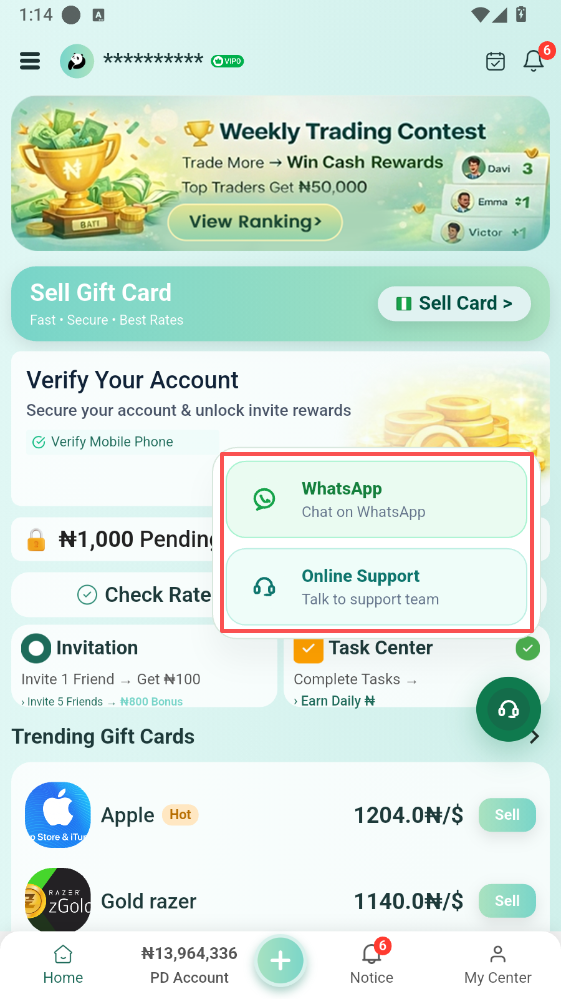
- Contact customer support if the problem continues.
The Wrong Bank Account Was Saved
Do not request a withdrawal using incorrect bank details.
Return to Account Settings and check whether the existing bank information can be edited or replaced. If no editing option is available, contact PDCard support before continuing.
Important Safety Tips
Banking information is sensitive. Follow these precautions when adding a bank account to PDCard.
Use Your Own Device
Avoid entering bank details on a public phone, shared device, or unknown computer.
Check the Application
Make sure you are using the official PDCard application before providing banking information.
Never Share Your Password
PDCard support should not need your account password to help you add a bank account.
Protect Your Verification Codes
Do not share one-time passwords, withdrawal PINs, or security codes with another person.
Review Details Before Withdrawing
Always confirm the bank name, account number, and account holder name before submitting a withdrawal request.
Do You Need a Withdrawal PIN?
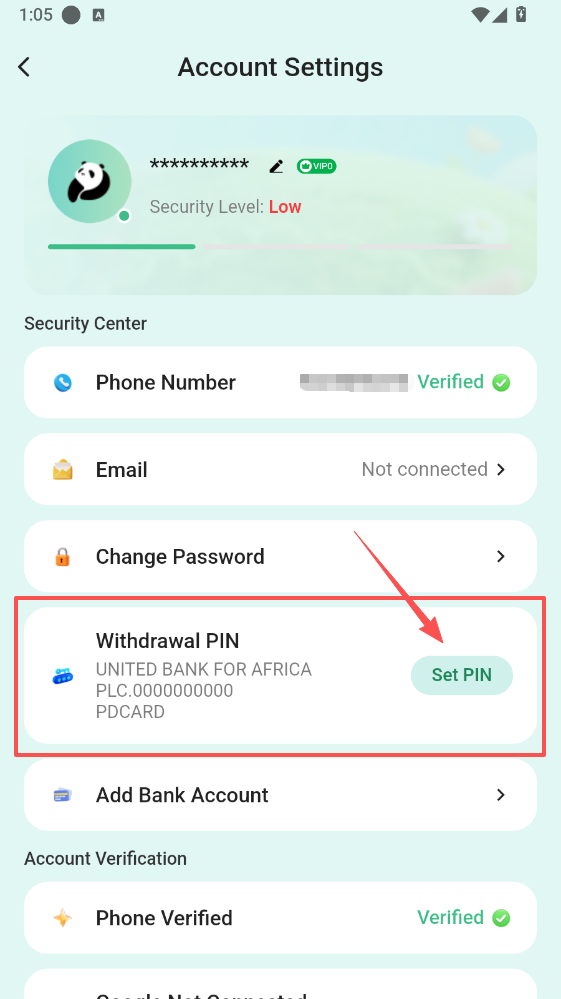
The Account Settings page may also include a Withdrawal PIN section.
The withdrawal PIN is separate from your bank account details. Adding a bank account identifies where your funds should be sent, while a withdrawal PIN may be used as a security measure when making withdrawal-related changes or requests.
Set a secure PIN that is difficult for another person to guess. Do not use easily predictable combinations such as:
- 0000
- 1111
- Your birth year
- The last digits of your phone number
Never share your withdrawal PIN with anyone.
Frequently Asked Questions
How Do I Add a Bank Account to PDCard?
Go to My Center, open Account Settings, select Add Bank Account, choose your bank, enter your account number and account name, and tap Save Bank Account.
Can I Add a Bank Account Before Trading a Gift Card?
Yes. You can prepare your withdrawal account in advance by adding the bank information through Account Settings.
What Bank Information Does PDCard Require?
The bank setup page generally asks for your bank name, bank account number, and account holder name.
Can I Use Someone Else’s Bank Account?
It is safer to use an account that belongs to you and matches your verified information. Account ownership requirements may depend on PDCard’s current verification and withdrawal policies.
What Happens if I Enter the Wrong Account Number?
Incorrect banking information may cause a failed, delayed, or misdirected withdrawal. Check all details carefully and correct them before requesting a withdrawal.
Can I Change My Bank Account Later?
Check the bank section under Account Settings for an edit or replacement option. Contact PDCard support when the app does not allow you to change the saved account directly.
Is an ATM Card Number the Same as a Bank Account Number?
No. Your ATM or debit card number is different from your bank account number. Enter the account number provided by your bank.
Why Is My Bank Not Appearing on PDCard?
Your bank may not currently be included among the supported withdrawal institutions. Do not select an incorrect bank. Contact support or use another supported account.
How Long Does It Take to Add a Bank Account?
The details can normally be entered within a few minutes. The final result may depend on your internet connection, the information provided, and the app’s current verification process.
Final Checklist Before Saving Your Bank Account
Before tapping Save Bank Account, check these details one final time:
- The correct bank has been selected.
- The correct account number has been entered.
- The full account holder name has been provided.
- There are no spelling errors.
- There are no missing digits.
- There are no unnecessary spaces.
- The bank account is active.
- The information belongs to the intended withdrawal recipient.
Add Your Bank Account to PDCard
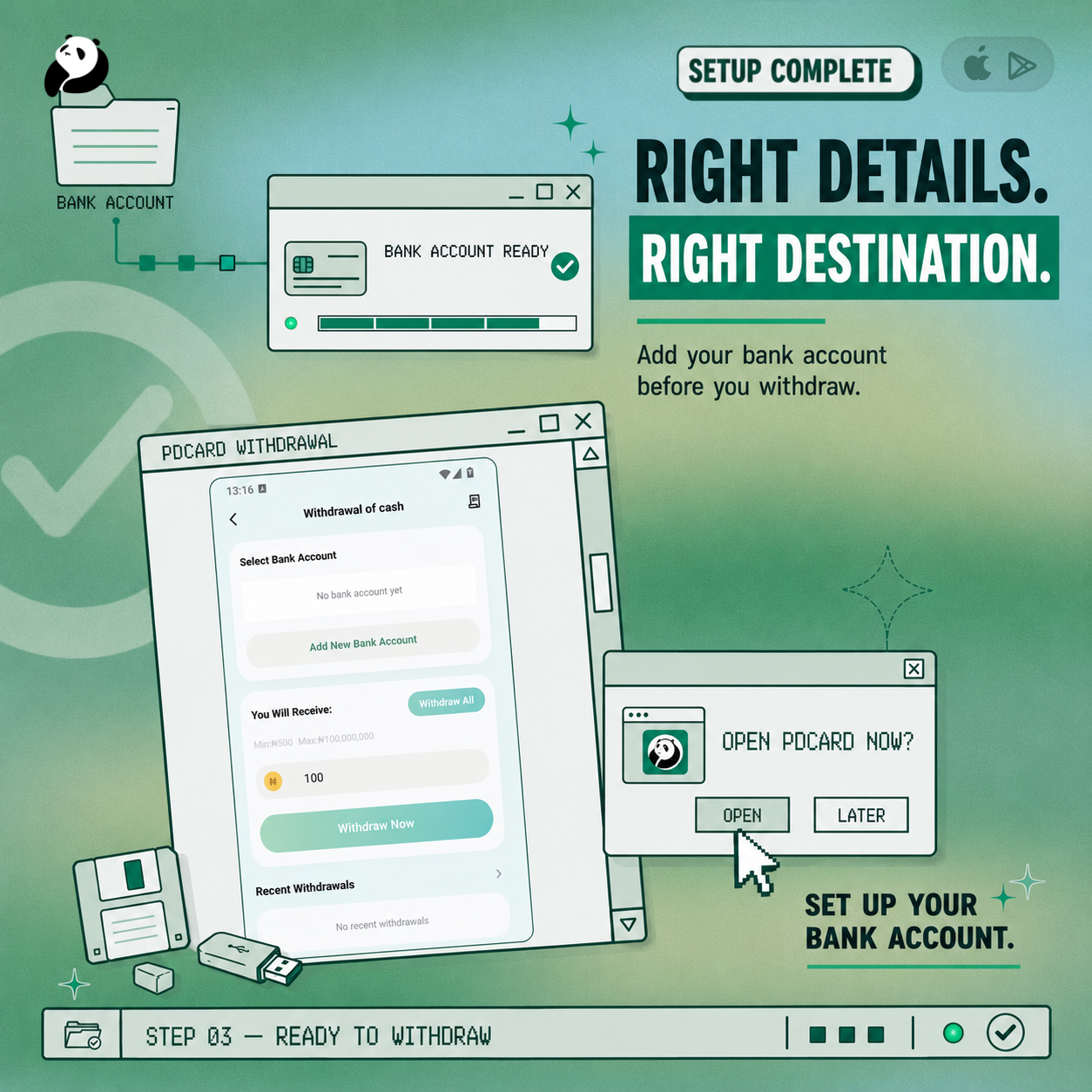
Understanding how to add bank into PDCard is important before requesting a withdrawal.
Start from the PDCard home screen, open My Center, select Account Settings, tap Add Bank Account, and provide the correct bank name, account number, and account holder name.
Take a moment to review every detail before saving. Correct banking information helps create a clearer and more reliable withdrawal process on PDCard.
Download PDCard on App Store or Google Play.
Open PDCard, connect your bank account, and prepare your withdrawal method.
Apple gift card trading on PDCard
Bank details are part of preparing to receive a withdrawal after you sell Apple gift cards. Check your payout information carefully and keep the card trade record separate from the later withdrawal record.
Related guides: how to sell Apple gift cards in Nigeria and Apple gift card rates and naira value.