How to Withdraw Money from PDCard: A Simple Step-by-Step Guide [2026]
How to Withdraw Money from PDCard: A Simple Step-by-Step Guide
After completing a gift card trade or receiving an eligible reward in the PDCard app, you may want to transfer the available balance to your bank account.
The PDCard withdrawal process allows users to manage their balance and submit a bank withdrawal request directly inside the app. You can access the withdrawal page, select an existing bank account or add a new one, enter the amount, and review your recent withdrawal records in one place.
In this guide, you will learn how to withdraw money from PDCard step by step.
Step 1: Open Your PDCard Account
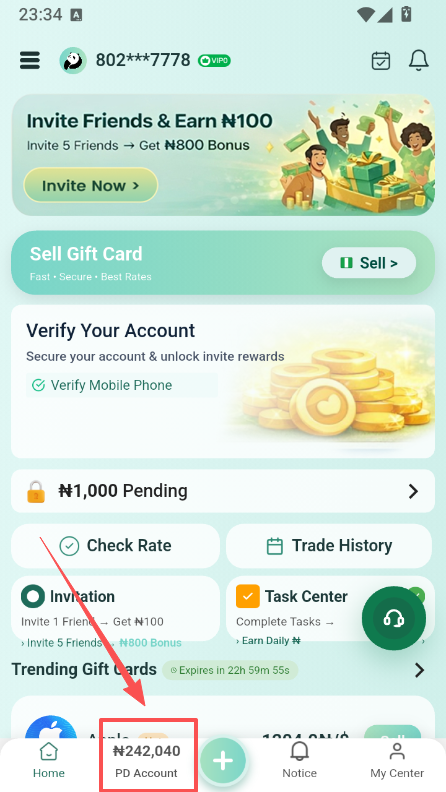
Open the PDCard app and log in to your account.
On the home page, you can view important account features such as:
- Your available balance
- Gift card trading options
- Check Rate
- Trade History
- Daily Missions
- Invitation rewards
- Transaction records
Before withdrawing, review your balance to confirm that the money from your completed trades or eligible activities has been added to your account.
You can also check your transaction history when you need more information about a specific trade or reward.
Step 2: Tap “Withdraw Cash”
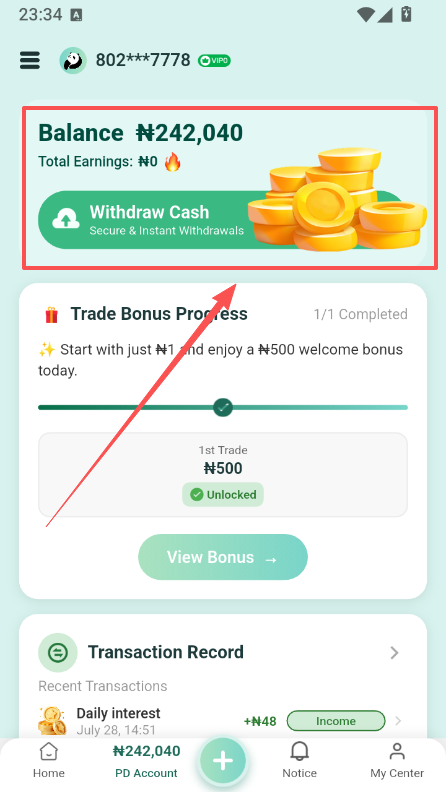
From your PDCard account page, locate the Withdraw Cash button near the balance section.
Tap this button to enter the PDCard withdrawal page.
The withdrawal page allows you to manage your bank accounts and review the amount you want to receive. Do not submit the request until you have checked that the selected bank information belongs to you and has been entered correctly.
Step 3: Select Your Bank Account
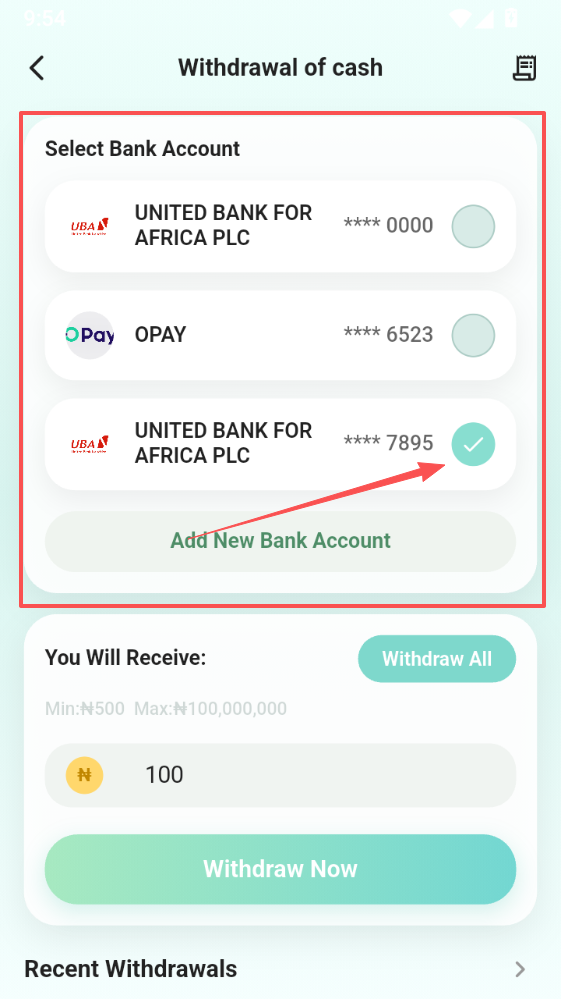
If you have already added a bank account to PDCard, select it from the list of available accounts.
Confirm the following information carefully:
- Bank name
- Account number
- Account holder information
- Selected withdrawal account
Selecting the wrong bank account may affect the processing of your withdrawal request. Always review the masked account number shown in the app before continuing.
How to Add a New Bank Account to PDCard
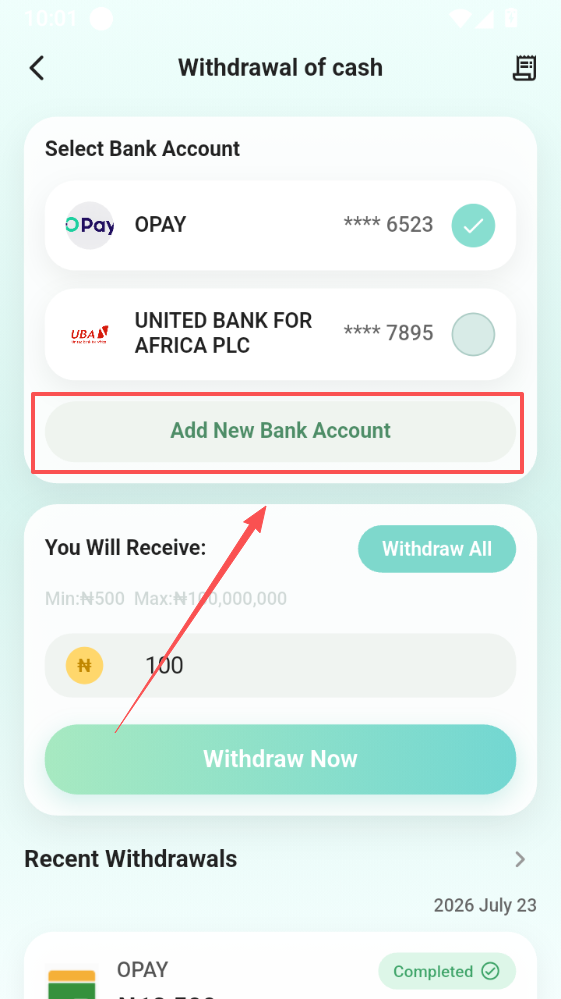
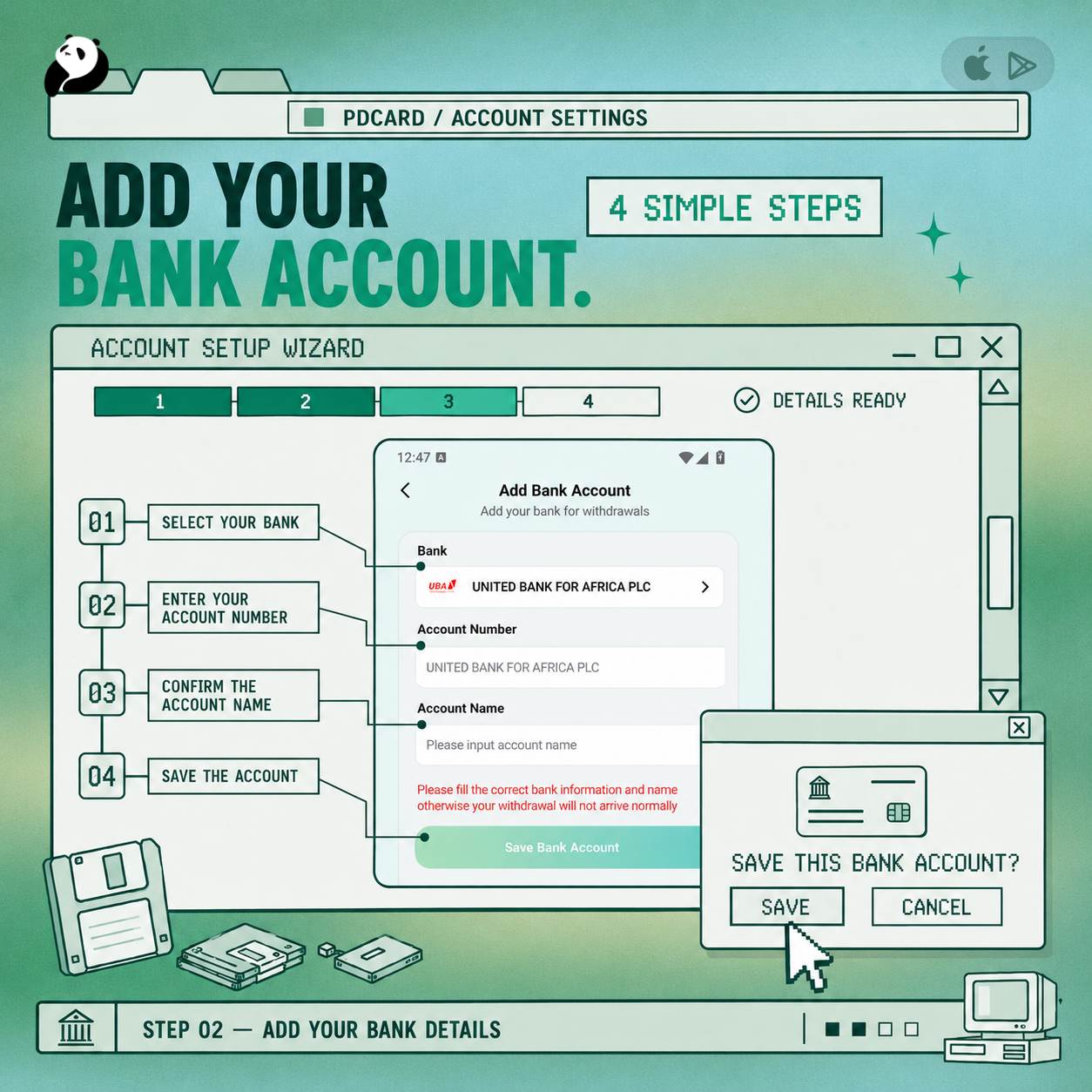
When your preferred bank account is not yet connected, tap Add New Bank Account.
Enter the required bank information and follow the instructions displayed in the app.
Make sure that:
- The bank name is correct.
- The account number contains no missing or incorrect digits.
- The account belongs to the intended recipient.
- The information matches any verification requirements shown by PDCard.
After adding the account, return to the withdrawal page and select it as your receiving bank account.
Step 4: Enter the Withdrawal Amount
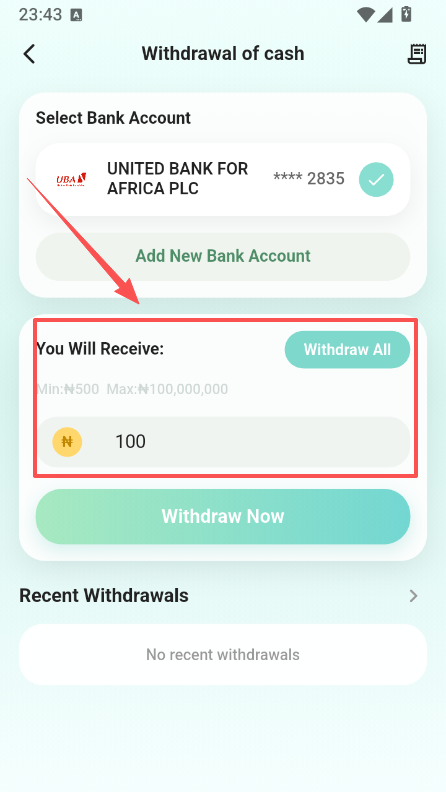
Enter the amount you want to withdraw from your available PDCard balance.
The withdrawal page may show the amount you will receive before you confirm the transaction. Review this information carefully and make sure the entered amount does not exceed the balance currently available for withdrawal.
You may also see a Withdraw All option. This feature can be used when you want to submit a request for your entire eligible balance.
Step 5: Tap “Withdraw Now”
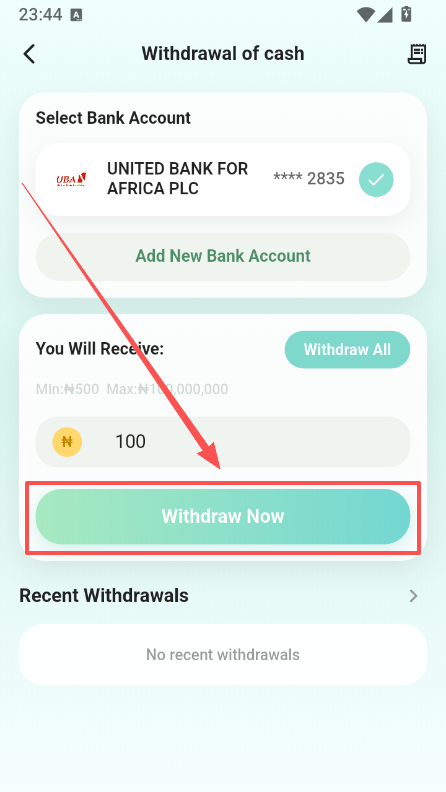
After confirming your bank account and withdrawal amount, tap Withdraw Now.
Before submitting, check the details one final time:
- Is the correct bank selected?
- Is the account number correct?
- Is the withdrawal amount correct?
- Is the amount available in your PDCard balance?
Once the request has been submitted, avoid sending the same withdrawal repeatedly. Duplicate requests may make it more difficult to identify the correct transaction.
Step 6: Check Your Recent Withdrawals
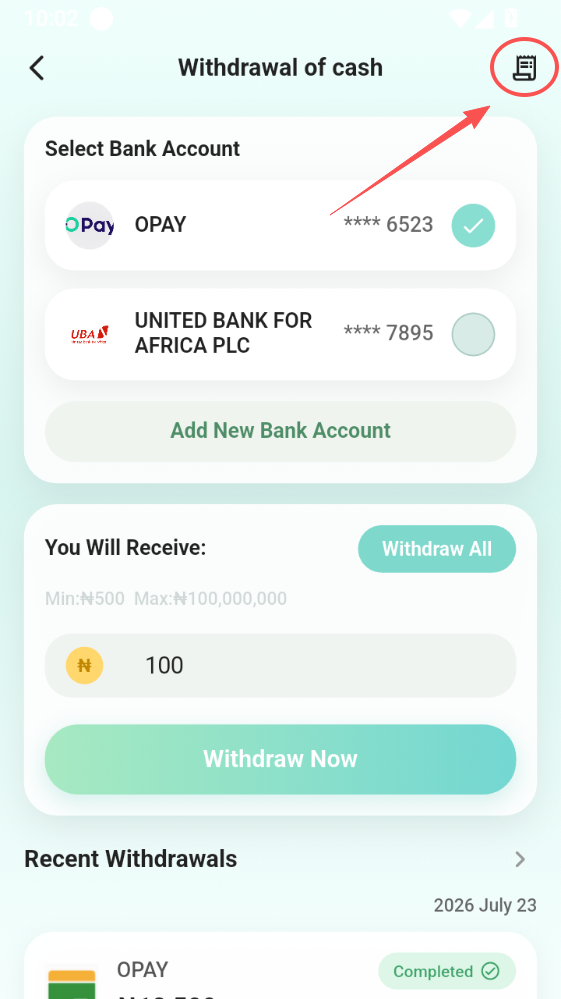
After submitting the request, review the Recent Withdrawals section.
This area may display information such as:
- Receiving bank
- Withdrawal amount
- Submission date
- Transaction status
- Withdrawal details
Use this page to check whether your request is still being processed or has been completed.
Processing time may depend on account verification, transaction review, banking conditions, and the status displayed in the app. It is better to track the original request instead of submitting another withdrawal for the same amount.
Why Is My PDCard Withdrawal Still Pending?
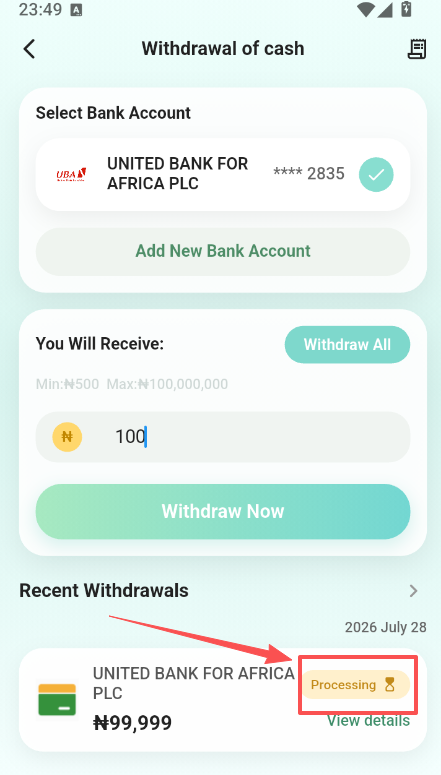
A withdrawal may remain pending while the request is being verified or processed.
Possible reasons include:
- The withdrawal request is still under review.
- Your bank details require verification.
- Your account information is incomplete.
- The bank or payment channel is experiencing a delay.
- The withdrawal was submitted outside normal processing conditions.
- Additional transaction checks are required.
A pending status does not always mean that the withdrawal has failed. Check the transaction details and wait for the status to update.
Do not submit the same request multiple times unless the original transaction has clearly failed or PDCard support instructs you to do so.
What Should You Do If a Withdrawal Fails?
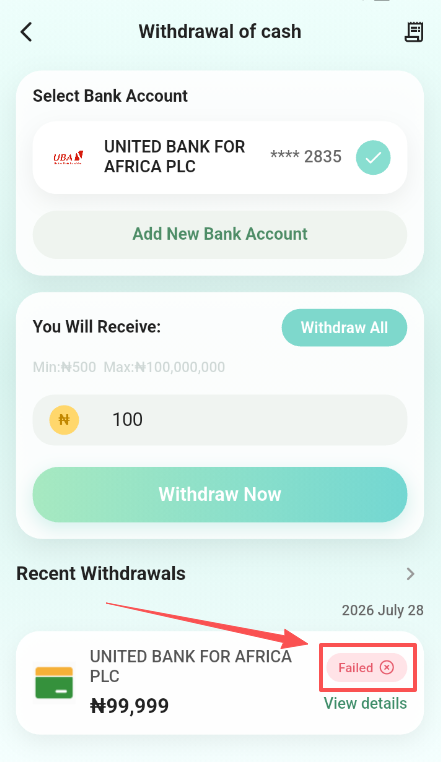
If your PDCard bank withdrawal is unsuccessful, check the following:
Confirm Your Bank Details
Review the bank name and account number connected to your PDCard account. Correct any inaccurate information before trying again.
Check Your Available Balance
Make sure the amount is still available and eligible for withdrawal. Funds connected to pending trades may not yet be ready to withdraw.
Review the Transaction Status
Open the Recent Withdrawals section and read the status or transaction details before submitting another request.
Contact Official PDCard Support
When the issue remains unresolved, contact PDCard through an official support channel. Prepare the relevant information, including:
- Your PDCard account details
- Withdrawal amount
- Submission date
- Transaction reference, when available
- Screenshot of the withdrawal status
Never share your password, verification code, withdrawal PIN, or other private login information with anyone.
How to Avoid PDCard Withdrawal Problems
Several simple checks can help reduce withdrawal errors.
Use the Correct Bank Account
Only select a bank account that is active and able to receive transfers.
Review Every Digit
A single incorrect digit can send the request to the wrong account or cause it to fail.
Keep Your PDCard App Updated
Using the latest available version may help you access current app features and security improvements.
Do Not Submit Duplicate Requests
When a transaction is pending, track it through the app instead of repeatedly pressing the withdrawal button.
Protect Your Account
Do not give another person access to your PDCard password, verification code, withdrawal PIN, or security details.
Why Use PDCard to Manage Gift Card Trades?
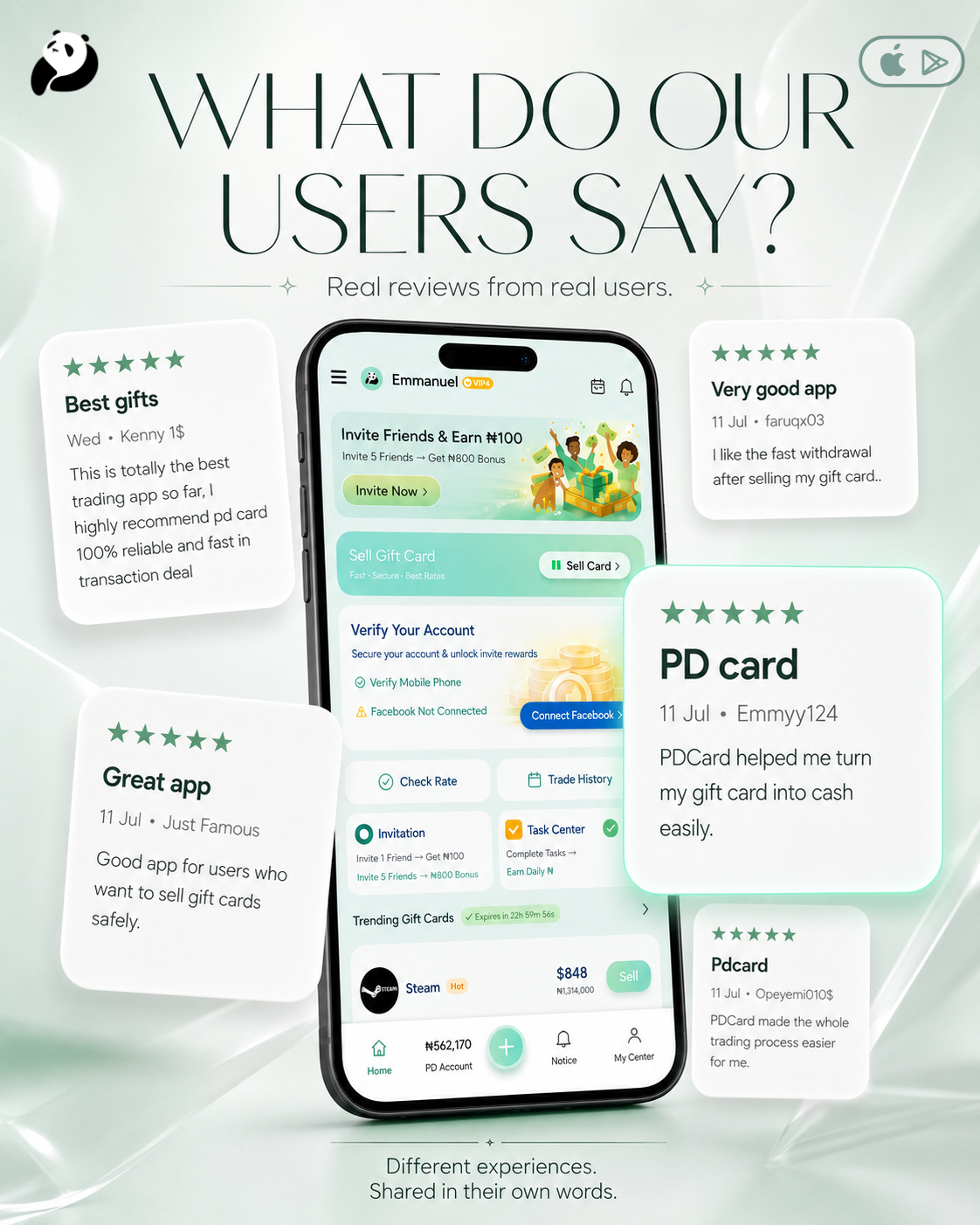
PDCard allows users to complete several gift card trading activities within one app.
Depending on the available app features, users can:
- Check available gift card rates.
- Submit gift card information.
- Follow the status of a trade.
- Review transaction records.
- View their PDCard balance.
- Add a bank account.
- Submit a cash withdrawal request.
Keeping these steps in one account makes it easier to review your transaction journey from submission to withdrawal.
Frequently Asked Questions
How Do I Withdraw Money from the PDCard App?
Open your PDCard account, tap Withdraw Cash, select or add a bank account, enter the amount, review the information, and tap Withdraw Now.
How Do I Add My Bank Account to PDCard?
Go to the withdrawal page and tap Add New Bank Account. Enter the required banking information and confirm that all details are correct.
Can I Withdraw My Entire PDCard Balance?
The withdrawal page may include a Withdraw All option. The amount must be available and eligible for withdrawal.
Where Can I Check My Withdrawal Status?
Open the Recent Withdrawals section on the withdrawal page to review the amount, receiving bank, submission date, and current transaction status.
Why Is My PDCard Money Not Available for Withdrawal?
The balance may be linked to a pending gift card trade, an unverified transaction, a reward condition, or another processing requirement. Review your transaction records for more information.
Should I Submit Another Withdrawal When the First One Is Pending?
You should normally wait and track the original request. Submitting duplicate requests may cause confusion or result in multiple transactions.
What Should I Do When My Bank Account Is Not Listed?
Tap enter the required informationAdd New Bank Account, enter the required information, save the account, and select it on the withdrawal page.
Final Thoughts
Learning how to withdraw money from PDCard is straightforward when your balance and bank information are ready.
The main steps are:
Open your PDCard account → Tap Withdraw Cash → Select or add a bank account → Enter the amount → Tap Withdraw Now → Track the transaction
Always review your account number and withdrawal amount before confirming. After submitting the request, use the Recent Withdrawals section to monitor its status instead of creating duplicate transactions.
With accurate bank details and careful account management, you can complete the PDCard withdrawal process more clearly and securely.
👉 Download the PDCard app on App Store or Google Play, then sign in and manage your withdrawal directly in the app.
Apple gift card trading on PDCard
After you sell Apple gift cards, follow the app’s withdrawal steps to move an available balance to your bank. The quoted card value and the status of a later withdrawal are separate details to check in your records.
Related guides: how to sell Apple gift cards in Nigeria and Apple gift card rates and naira value.