Interac e-Transfer to Naira: How to Send and Verify Payment With PDCard [2026]
What Is Interac e-Transfer and How to Trade It for Naira With PDCard
Interac e-Transfer lets people send Canadian dollars through online banking using a recipient’s email address or Canadian phone number. If you want to trade an e-Transfer payment for naira with PDCard, you need to check the recipient carefully and prepare complete payment proof.
This guide explains the process without exposing private banking information.
How Does E-Transfer Work?
The sender starts the payment through a participating Canadian bank or credit union. PDCard does not process the transfer inside the app. Support provides the current recipient information and verifies the payment details afterward.
Always use the latest email address or phone number supplied by PDCard support.
How to Find PDCard Customer Service
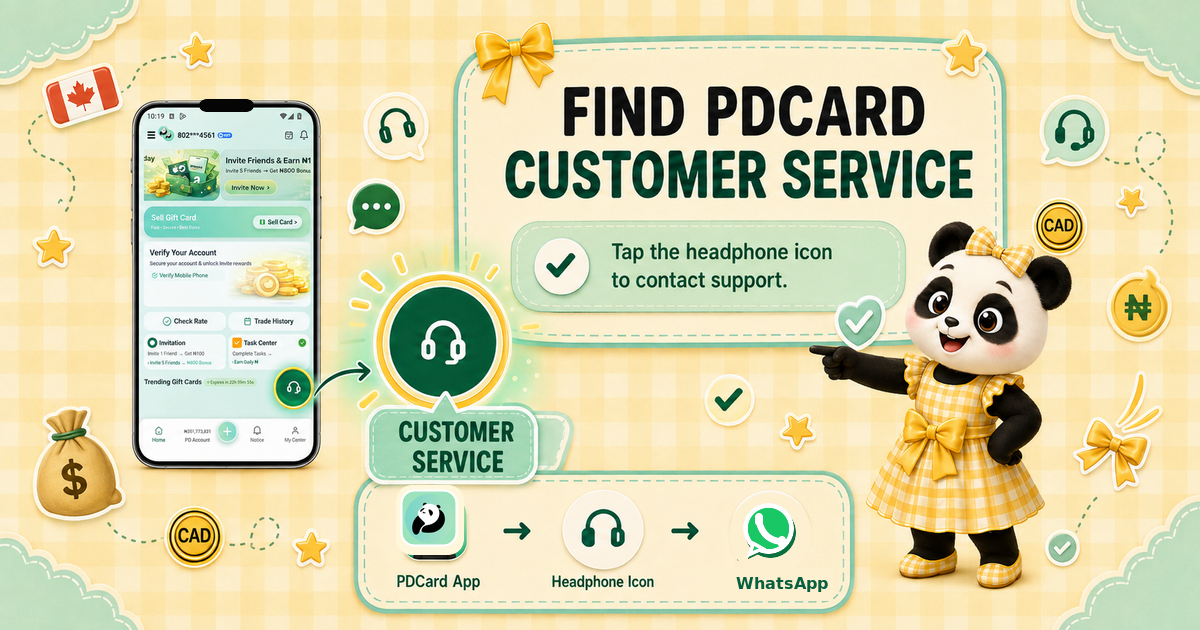
Open the PDCard App and tap the headphone icon to find Customer Service. From there, continue to the support channel and ask whether the e-Transfer option is currently available.
Request the latest recipient email address or phone number before opening your Canadian banking app. Do not reuse details from an older payment without checking them again.
Next: Once support confirms the current payment details, follow the delivery route below and check every recipient field before sending.
How to Trade E-Transfer for Naira
- Contact PDCard support and confirm that the payment option is available.
- Request the current recipient email address or phone number.
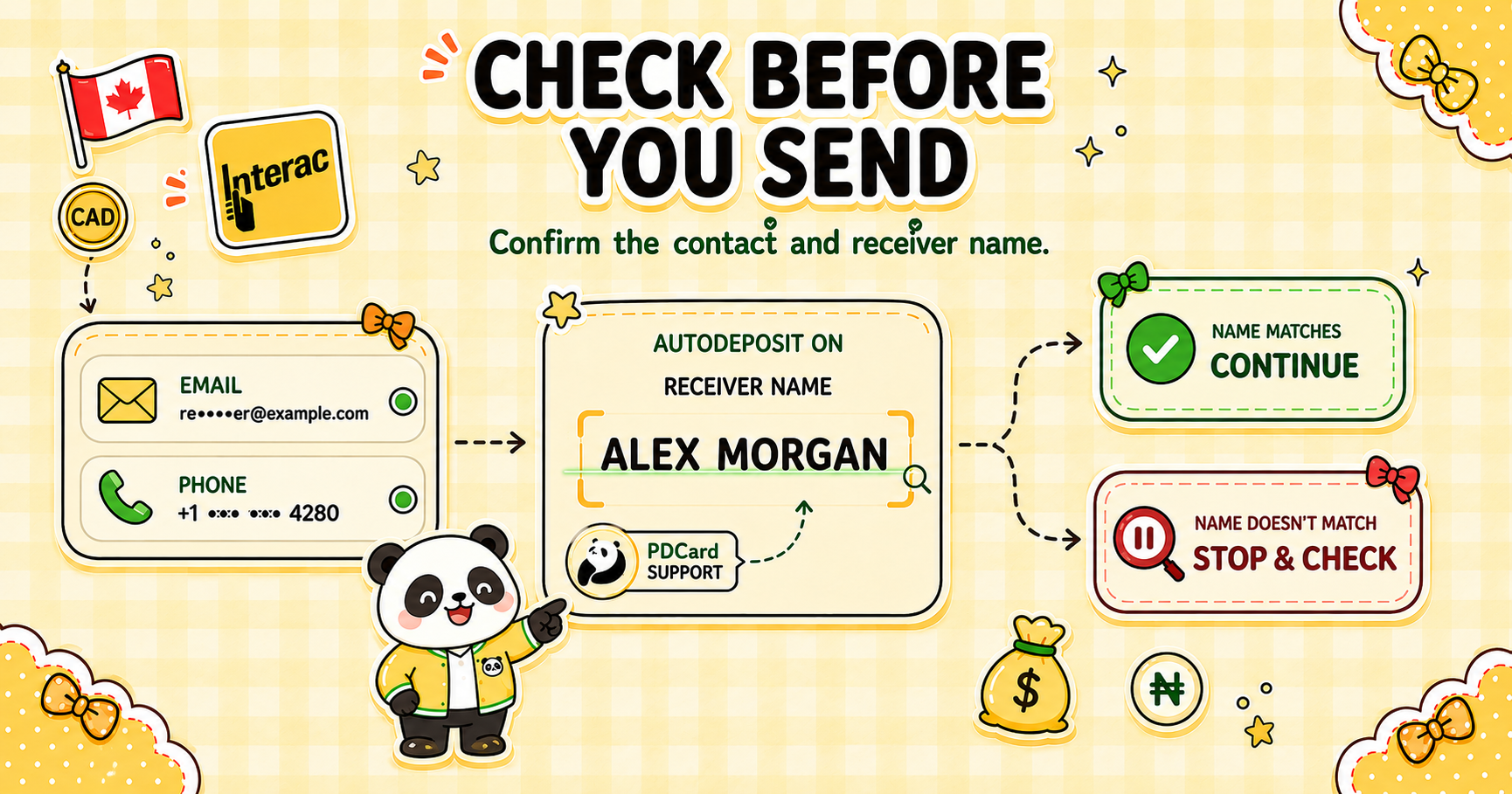
- Check the displayed receiver name before sending.
- Send the agreed CAD amount through your bank.
- Save the completed receipt and requested confirmation code.
- Submit the proof together with your PDCard User ID.
Related guide: Read this PDCard payment guide before sending
Check Autodeposit and the Receiver Name
If Autodeposit is enabled, your bank may show the registered receiver name before you confirm the transfer. Compare it with the name supplied by support.
If the name is different—even by one character—stop and check again. Do not send simply because the recipient looks familiar.
Prepare the Complete Payment Proof
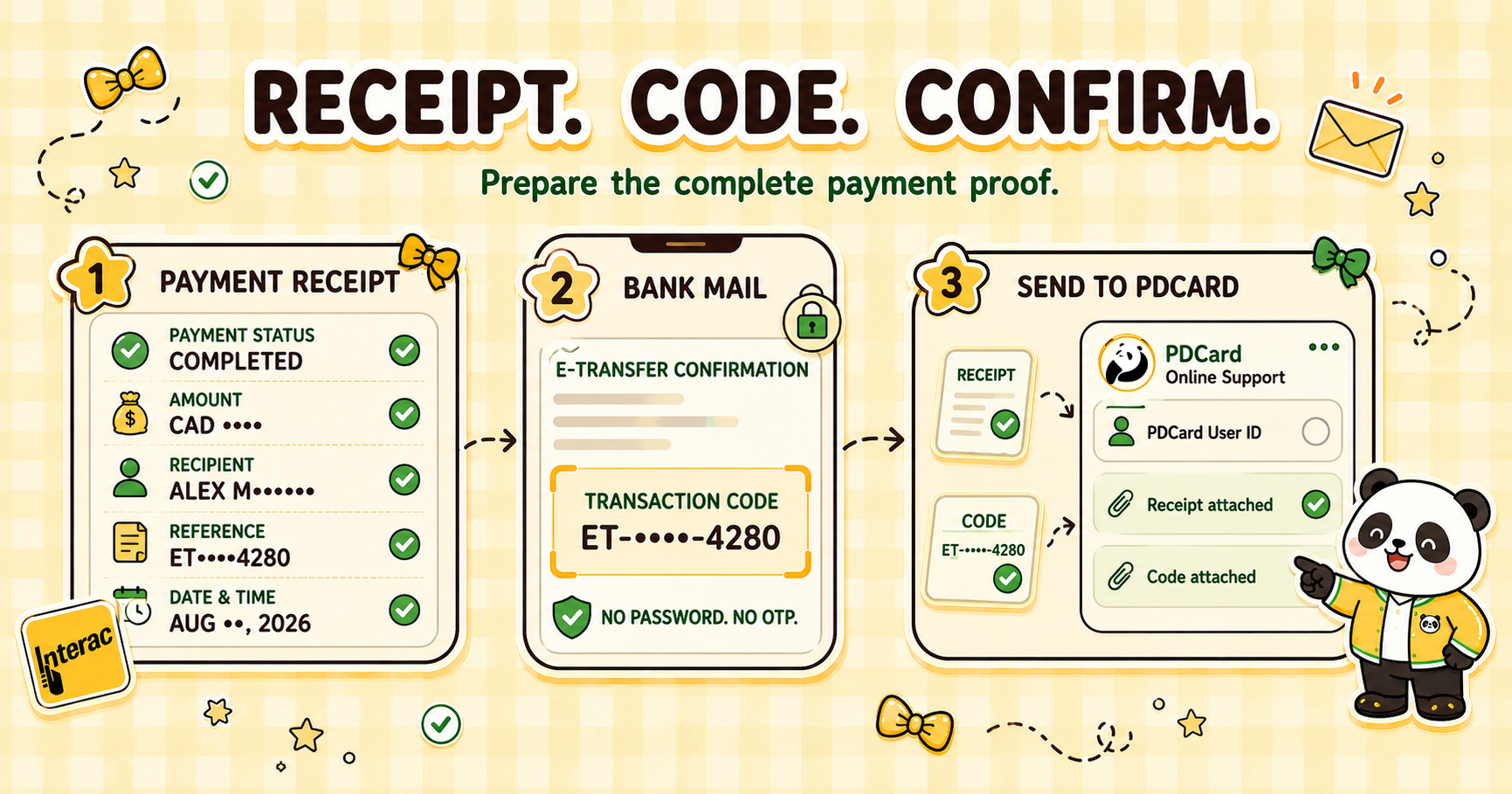
After sending, open the transaction inside your banking app. A useful receipt should show the CAD amount, recipient, completed status, reference number, date and time.
If requested, open Bank Mail or your bank’s secure inbox and find the transaction confirmation code connected to that payment.
Keep Your Banking Information Private
The transaction confirmation code is not your banking password, login OTP, security token or e-Transfer security answer. Never share those private credentials.
If a payment remains pending, check the first transaction before sending again. A second transfer may create a duplicate payment.
Related guide: Learn how to prepare your details for PDCard support
Continue With PDCard
Choose the correct store for your device to download PDCard, or join the WhatsApp or Telegram community for updates. Keep your PDCard User ID ready when contacting support about a payment.
Quick Checklist
- Use the current recipient information.
- Confirm the receiver name.
- Wait for the correct transaction status.
- Prepare a clear receipt and requested transaction code.
- Never share passwords, OTPs or security answers.
Apple gift card trading on PDCard
Interac transfer verification is different from submitting a Canadian Apple card. To sell Apple gift cards, use the card category and its current quote rather than applying an e-Transfer conversion rate.
Related guides: how to sell Apple gift cards in Nigeria and Apple gift card rates and naira value.