How to Read a Paysafecard Receipt Before Submitting
PDCARD PAYSAFECARD GUIDE
How to Read a Paysafecard Receipt Before Submitting
A Paysafecard receipt contains several numbers, but not every number is the code you need. Before submitting on PDCard, confirm the 16-digit PIN, amount, currency and country.
Reading these details together helps you avoid choosing the wrong code, denomination or country category. This guide shows you exactly where to look.
1. What Information Is on a Paysafecard Receipt?
The exact layout may vary by country and retailer, but a Paysafecard receipt will usually contain:
- Paysafecard name or logo
- Amount and currency
- Country or retailer information
- Purchase date and time
- 16-digit PIN
- Serial number
- Transaction or invoice number
- Barcode
Important: Do not identify a number only by its size, position or font. Always read the label printed beside it.
2. How to Identify the 16-Digit PIN
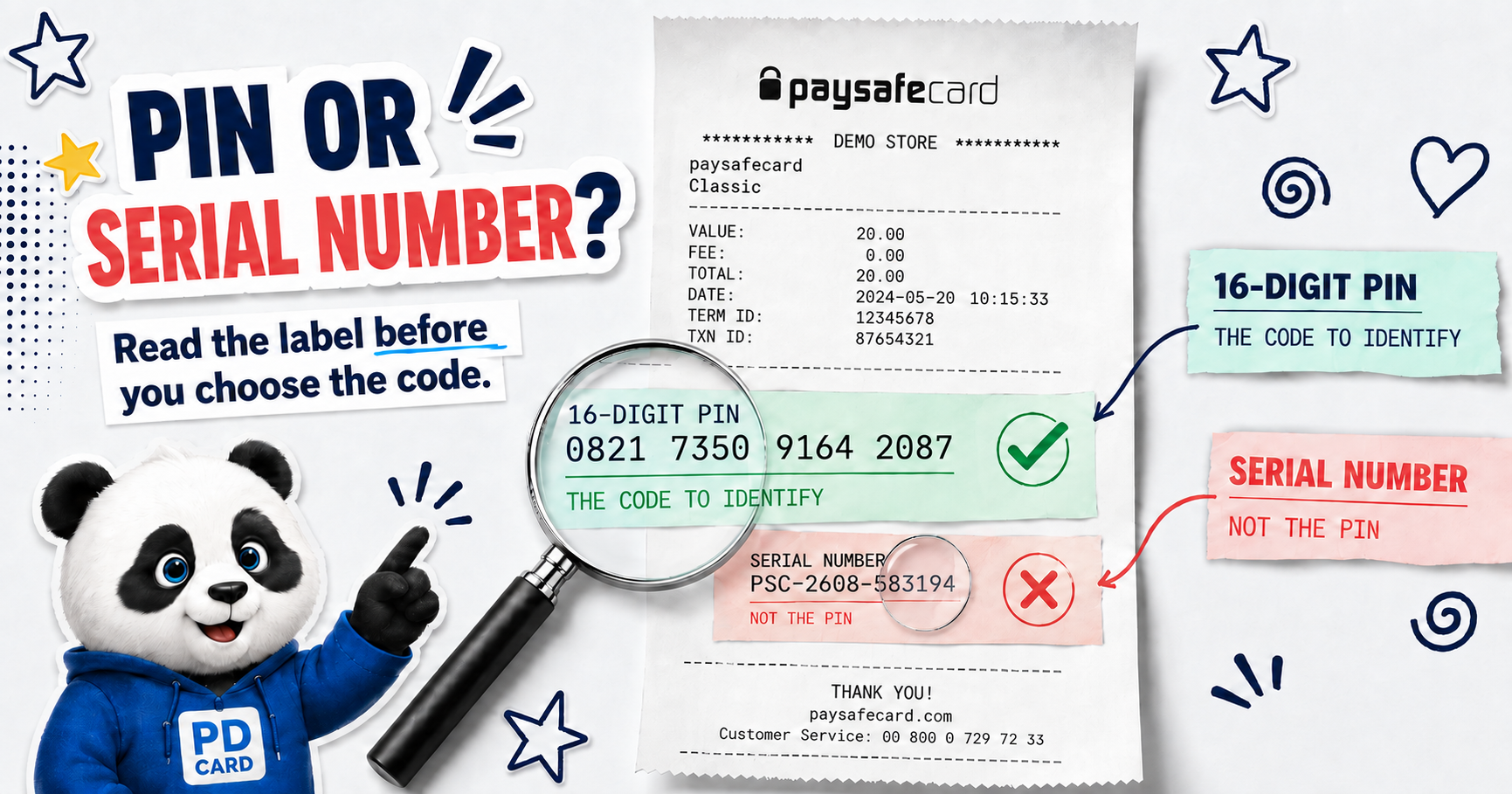
The Paysafecard code you need to identify is the 16-digit PIN. It is commonly displayed as four groups of four digits and starts with 0.
This is only a fictional example. Never publish or share a real unused Paysafecard PIN.
Look for a clear label such as PIN, Paysafecard PIN or 16-digit PIN. Do not assume that every long number on the receipt is the correct code.
PIN and Serial Number Are Not the Same
The serial number helps identify the receipt or transaction record. It is not the 16-digit PIN. A transaction number, invoice number and the number printed below the barcode also serve different purposes.
Read the label first. The correct code is the labelled 16-digit PIN—not the serial, transaction or barcode number.
3. Match the Amount, Currency and Country
The amount tells you the printed value, while the currency helps narrow down the correct Paysafecard category. However, currency may not identify the country by itself.
For example, EUR 50, CHF 50 and GBP 50 all show the same number, but they belong to different currency options.
Check the complete combination: amount + currency + country.
EUR — Multiple Country Categories
Seeing EUR on the Paysafecard receipt is not enough to determine the country. These EUR country categories currently supported by PDCard include:
 Germany
 Cyprus
 Belgium
 Greece
 Portugal
Check the country name, retailer location, store address, local language or other regional information printed on the receipt before selecting a category.
Other Supported Countries and Currencies
 CHF
Switzerland
 GBP
United Kingdom
 PLN
Poland
 DKK
Denmark
 CZK
Czech Republic
 NOK
Norway
 SEK
Sweden
 HUF
Hungary
 RON
Romania
Same Paysafecard name, different country category: Currency helps narrow down the choice, while country information confirms it.
4. Final Check Before Submitting on PDCard
Before submitting, review the Paysafecard receipt one final time.
- Find the labelled 16-digit PIN beginning with 0.
- Do not use the serial, transaction or barcode number as the PIN.
- Confirm the printed amount.
- Check the currency.
- Identify the correct country.
- Match the country and denomination with the current options on PDCard.
- Keep the complete receipt visible in the image.
- Avoid blur, glare, folds and heavy shadows.
- Never share an unused PIN publicly.
- Do not submit the same receipt more than once.
FINAL MATCH
PIN + AMOUNT + CURRENCY + COUNTRY
Confirm all four details before selecting your Paysafecard category on PDCard.
Paysafecard categories available on PDCard may change. Always check the current country, currency and denomination options displayed in the app before submitting.
Apple gift card trading on PDCard
A Paysafecard receipt follows different identification rules from an Apple card receipt. When you sell Apple gift cards, provide the documents requested for the selected Apple category and check its own quote.
Related guides: how to sell Apple gift cards in Nigeria and Apple gift card rates and naira value.